Lessons and levels
For students: how the course is organised, and how to read a lesson and mark it complete.
Levels, modules and lessons
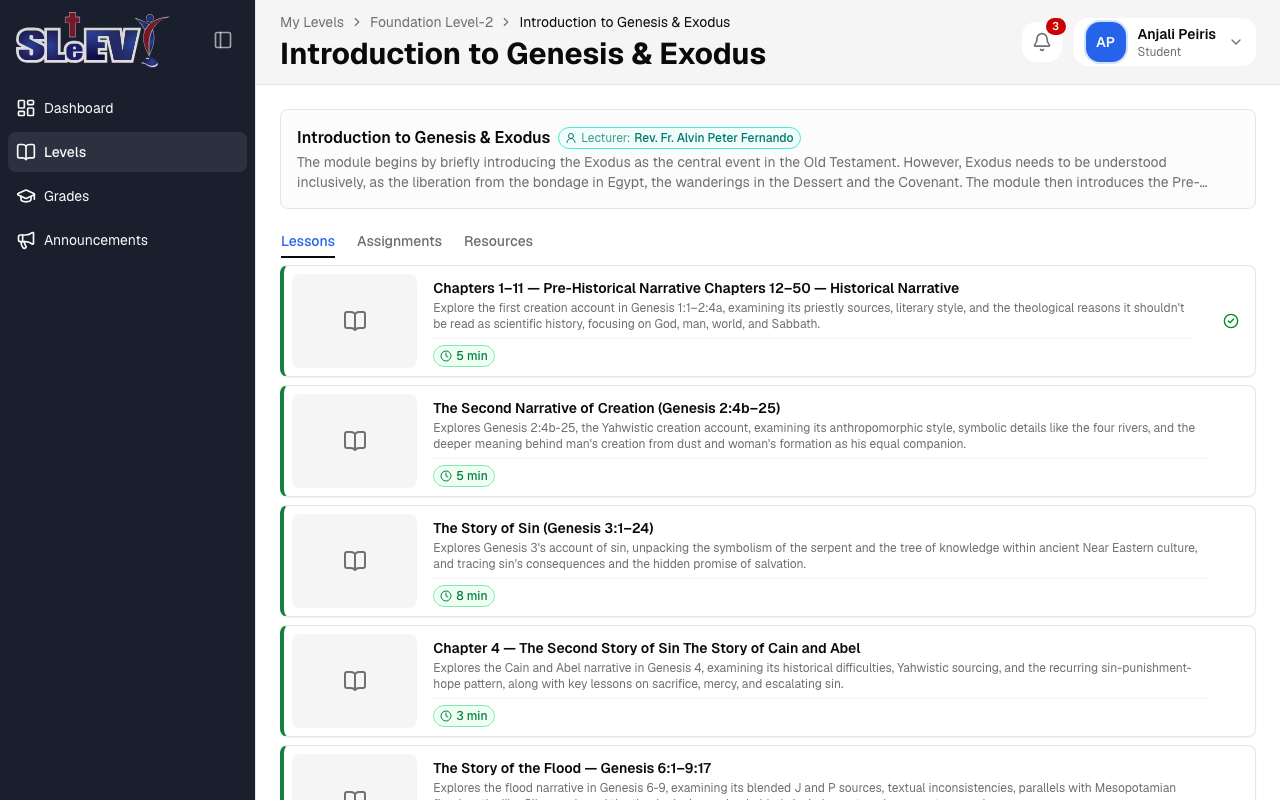
Your course is organised as levels, each made of modules, each made of lessons. A lesson has a PDF to read and a button to mark it complete; a module can also have its own resources, such as an introduction or a handout.
Level status
Open Levels in the sidebar to see every level and its status.
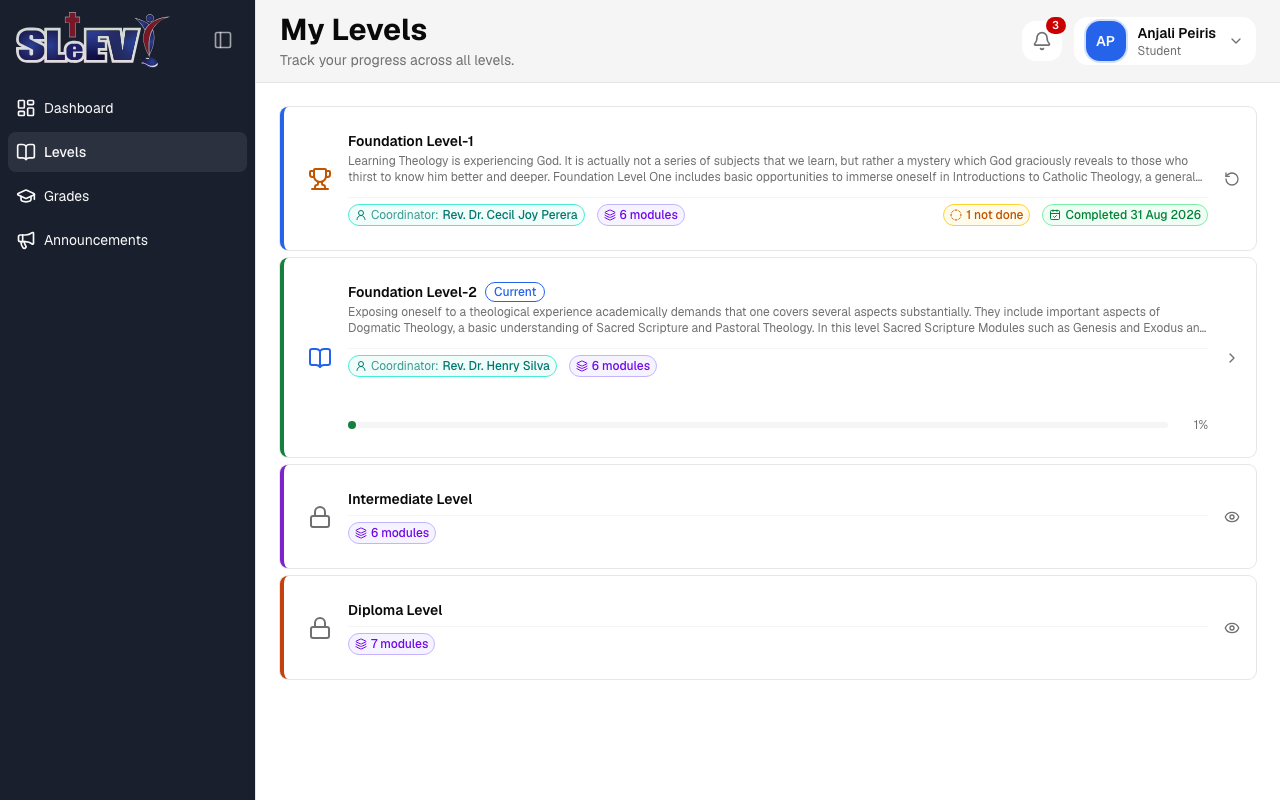
- Locked (padlock icon) — not open to you yet.
- Current (book icon, "Current" badge) — the level you're working through, with a progress bar.
- Completed (trophy icon) — every lesson finished, with the date it was completed, or "Carried over from Moodle" if it was carried over from your earlier progress there.
Levels open one at a time: your administrator grants you the next level once the one before it is completed. There's nothing to do to request it yourself — see Help if you think you're ready for the next one.
Opening a level
Select a level to see its modules.
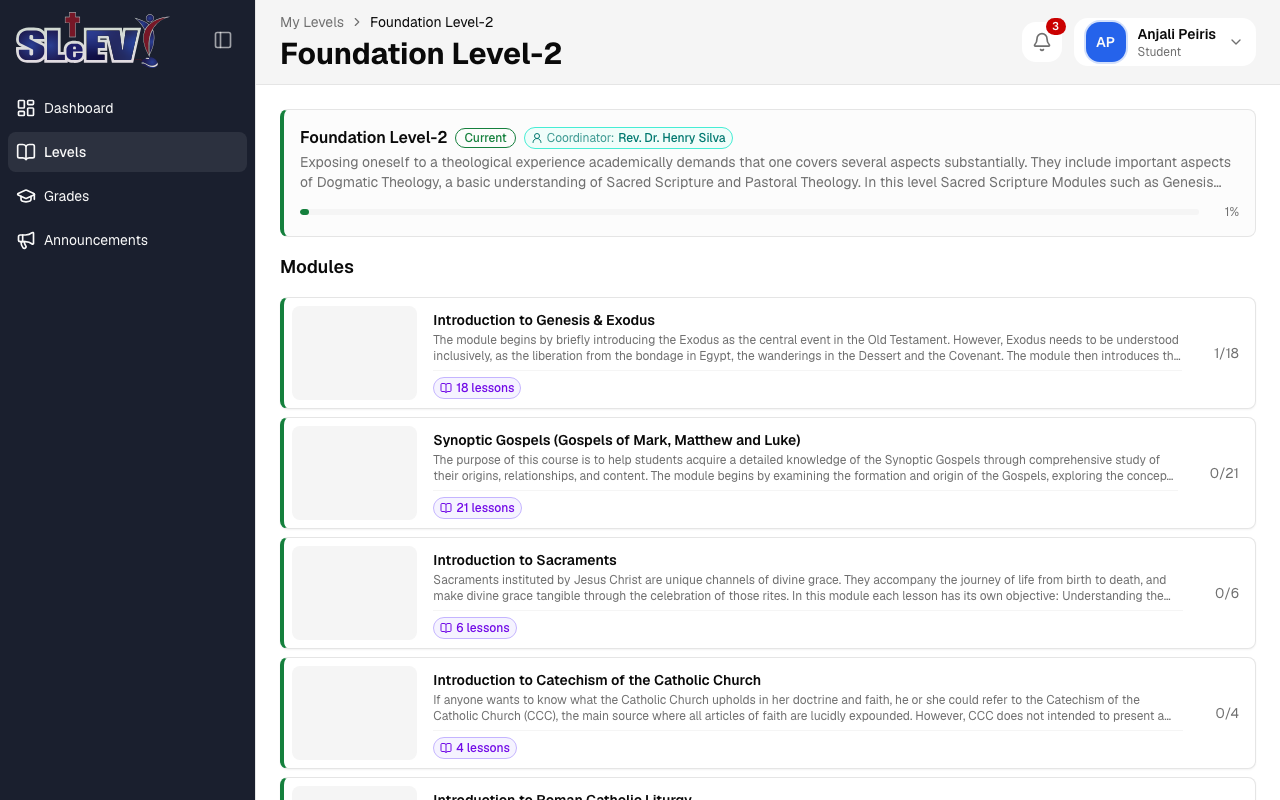
Select a module to see its lessons, assignments and resources.
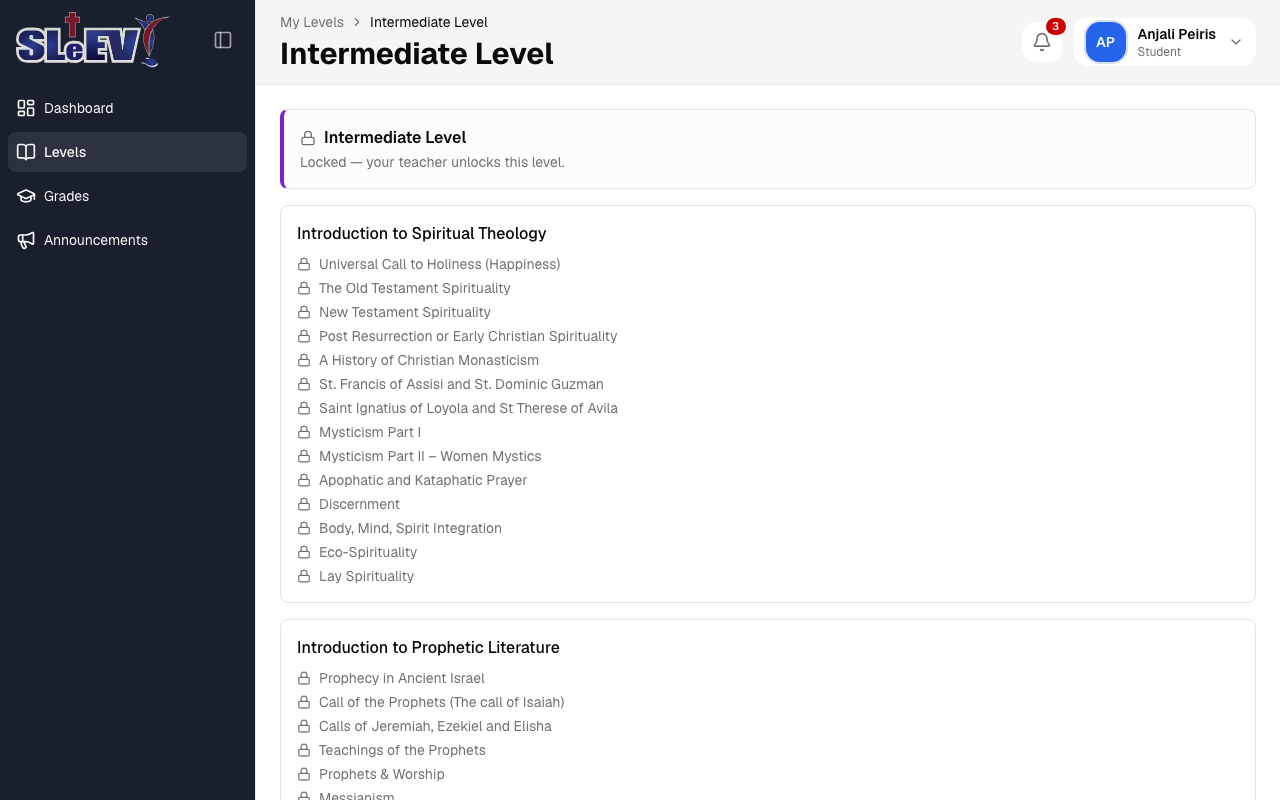
A locked level
If a level isn't open to you yet, you can still see its modules and lesson titles, but not their content — a locked level shows titles only (each lesson with a padlock) under a single banner reading "Locked — your teacher unlocks this level."
"Not done" lessons
Completing every lesson finishes a level, and that stays recorded even if a lesson is added afterwards, or you un-mark one you'd completed. If that happens, the new or un-marked lesson simply shows as "Not done" rather than reopening the level — you can still open and read it, and mark it complete, but it won't stop the level counting as completed.
Reading a lesson
Select a lesson to open it. The lesson's PDF appears on the Lesson tab. An Assignment tab sits beside it (Assignments (2) when there's more than one) — see Assignments.
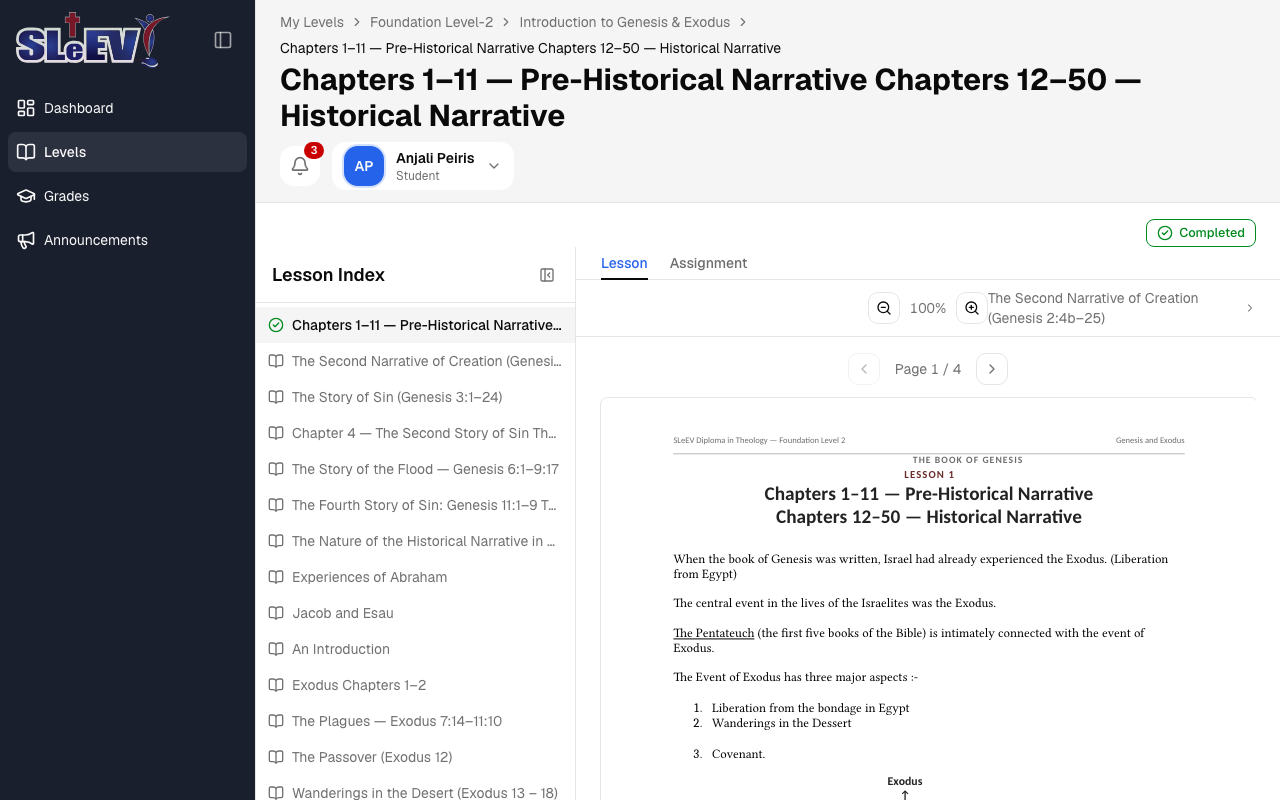
- Use the Previous page and Next page buttons under the toolbar to move through the PDF.
- Use the − and + zoom buttons to zoom out or in.
- Use the Lesson Index down the left to jump to another lesson in the module, or the previous/next-lesson links in the toolbar to move in order.
On a phone, the lesson index is hidden to save space — use the toolbar's next-lesson link, or go back to the module to pick another lesson.
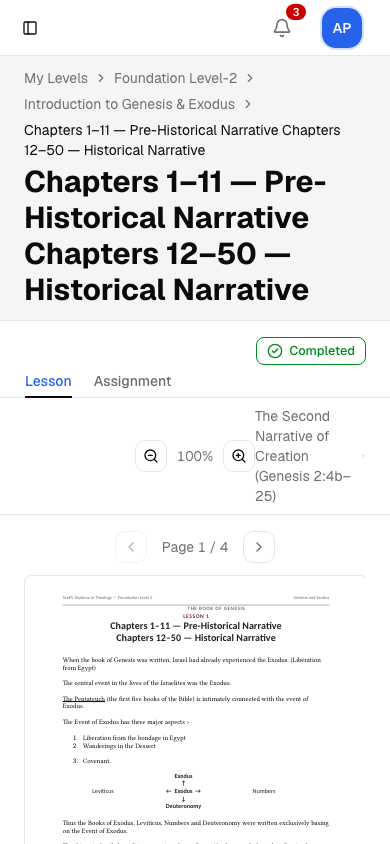
Marking a lesson complete
A Mark Complete ✓ button sits at the top of the lesson page. Select it once you've finished the lesson — it changes to a Completed button. If you need to undo it, select Completed again to mark it incomplete.