Grades and messages
For students: your Grades page, the notification bell, and announcements.
Grades
Open Grades in the sidebar to see every piece of work you've submitted or carried over, grouped by level and module, each with its status, attempt number, submission and grading dates, and any feedback or return note.
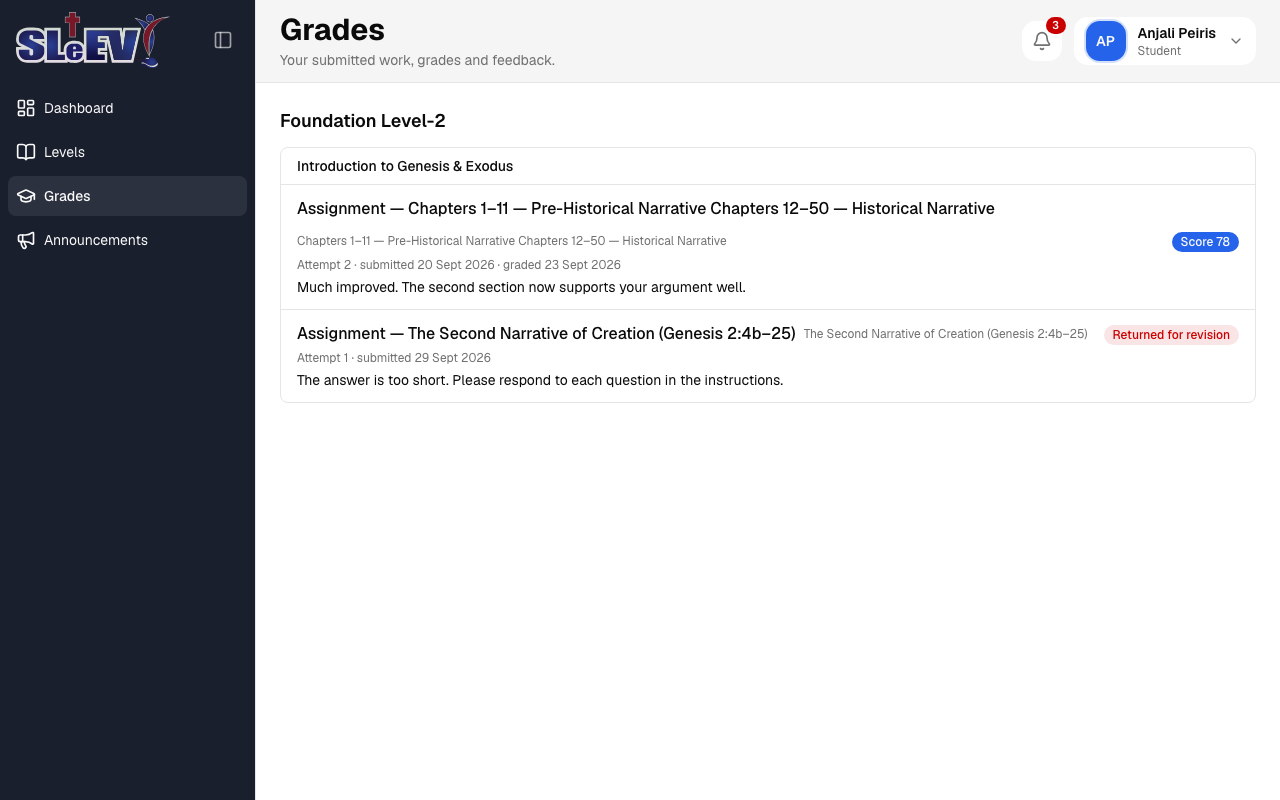
This is a read-only summary — to submit or re-upload a file, open the assignment from its lesson (see Assignments).
The notification bell
The bell at the top of every page shows a badge with your number of unread notifications. Select it to see your latest 10 notifications.
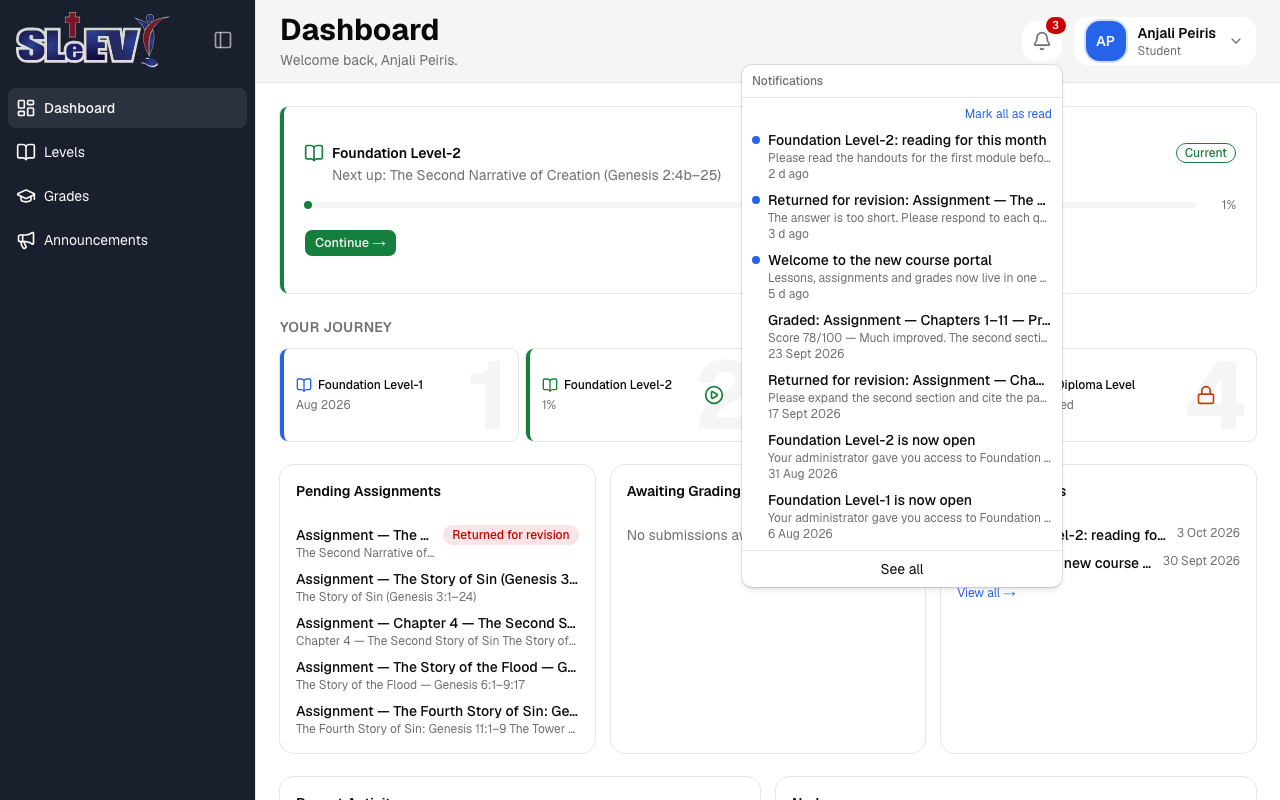
- Select Mark all as read to clear every unread notification at once.
- Select See all to open the full Notifications page.
- Selecting a notification opens what it's about and marks it read.
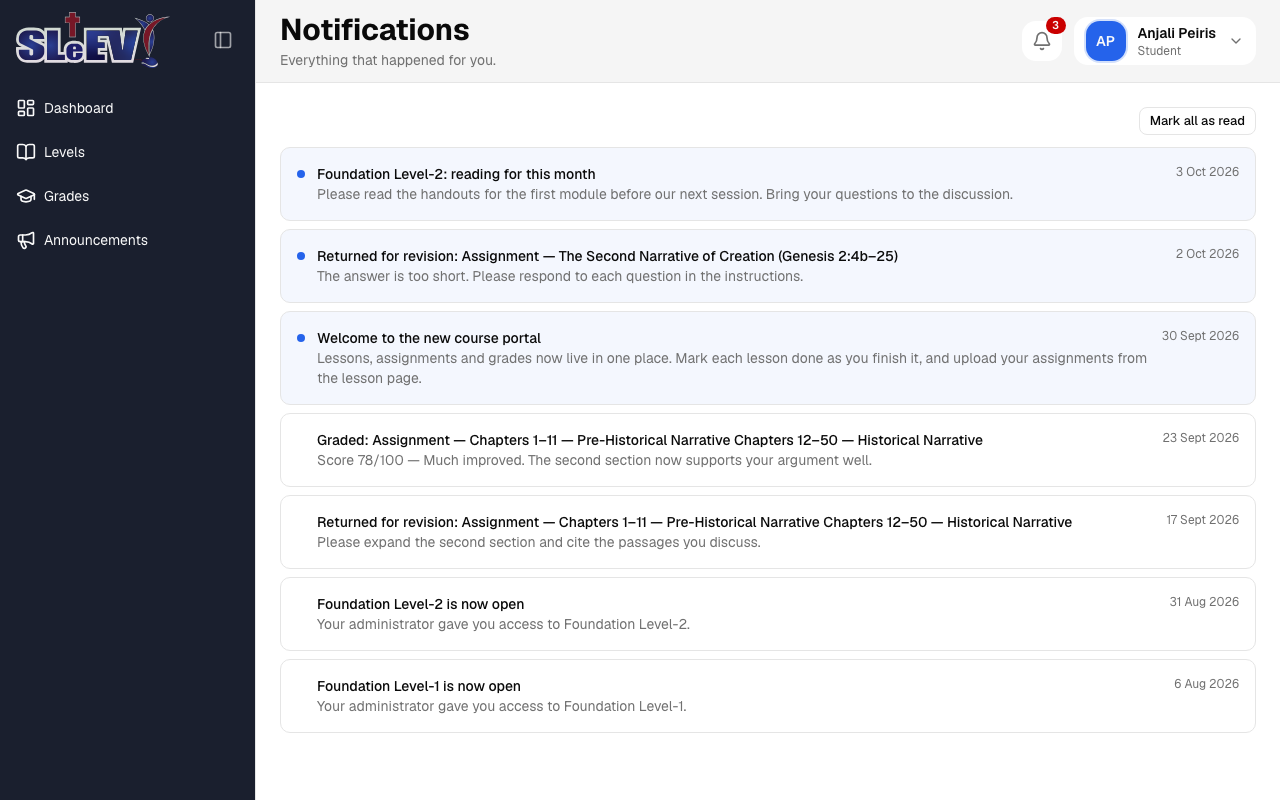
Notifications tell you about things like a level opening, an assignment being graded or returned, and new announcements.
Announcements
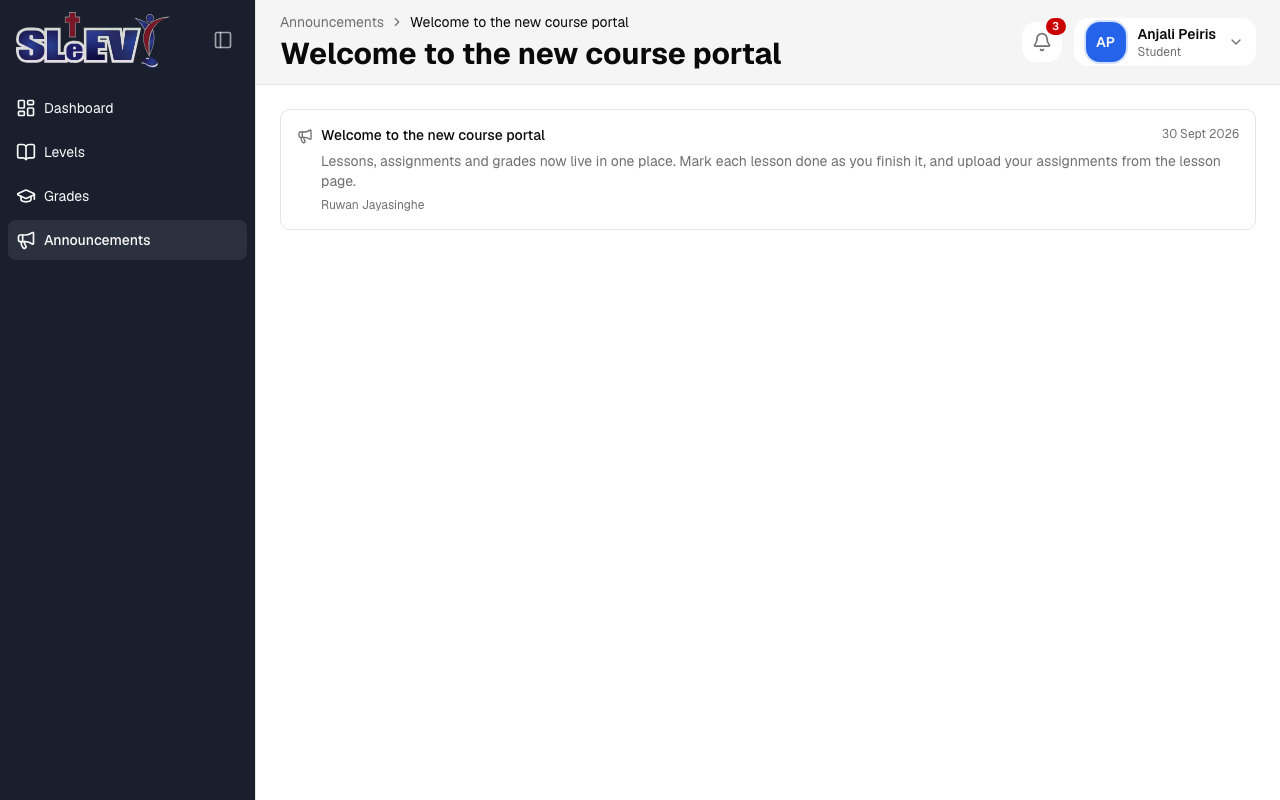
Open Announcements in the sidebar to see every announcement aimed at you — from everyone, your role, or everyone currently on your level.
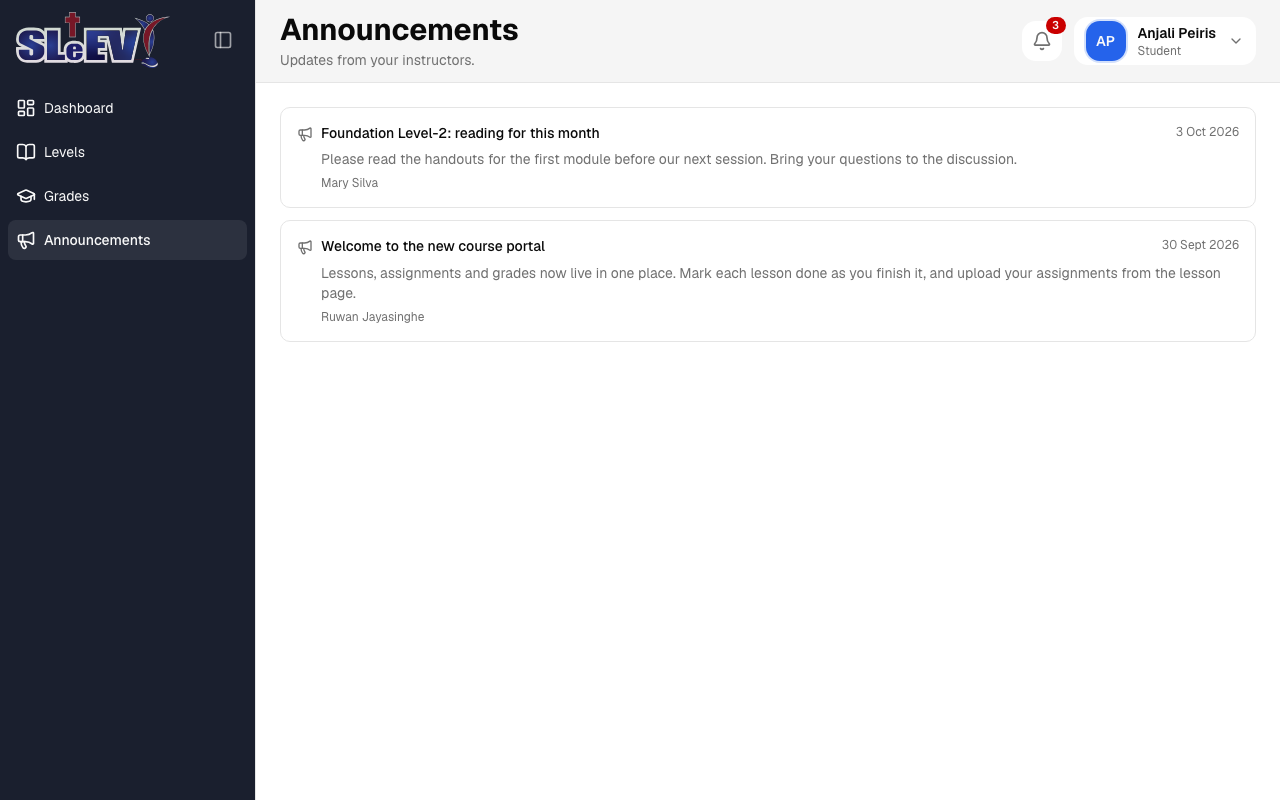
Select an announcement to read the full message. Opening it also marks its notification as read.
Email
Every notification and announcement that reaches you in-app is also sent to your email address, if you have one on file. If you don't have an email address recorded, you'll only see it in-app here — ask your course administrator if you'd like to add one.