Grading
For staff: the grading inbox, grading and returning work, and finding ungraded work from Assignments.
The grading inbox
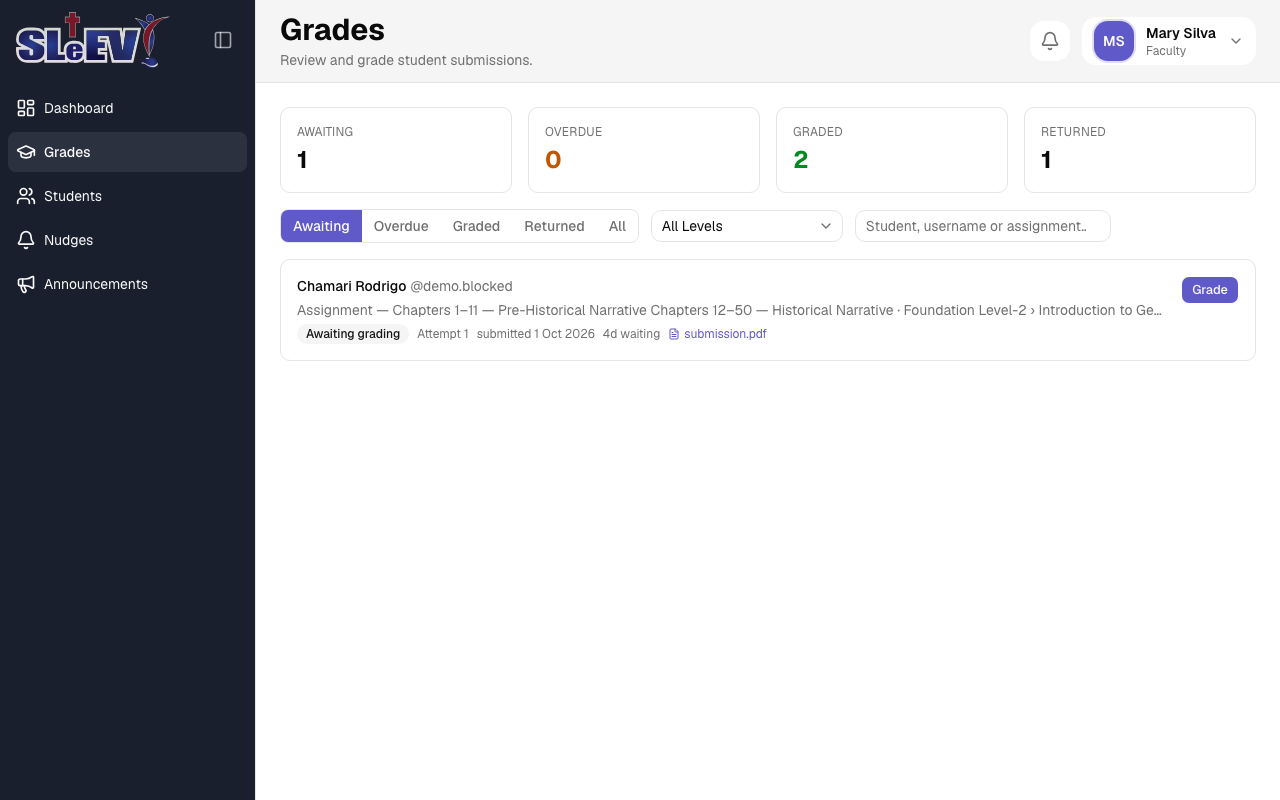
Open Grades in the sidebar. The stat header counts your submissions as Awaiting, Overdue, Graded and Returned. Below it:
- Filter tabs — Awaiting, Overdue, Graded, Returned, All.
- A level select and a search box (student, username or assignment).
- Clear filters appears once anything's set, and resets you to Awaiting with no level or search.
Each row shows the student, the assignment and its level › module › lesson, a status badge, the attempt number, when it was submitted, how many days it's been waiting, and a link to the submitted file. A row waiting longer than the grading-overdue threshold (see Settings) is highlighted and marked Overdue.
Grading or returning a submission
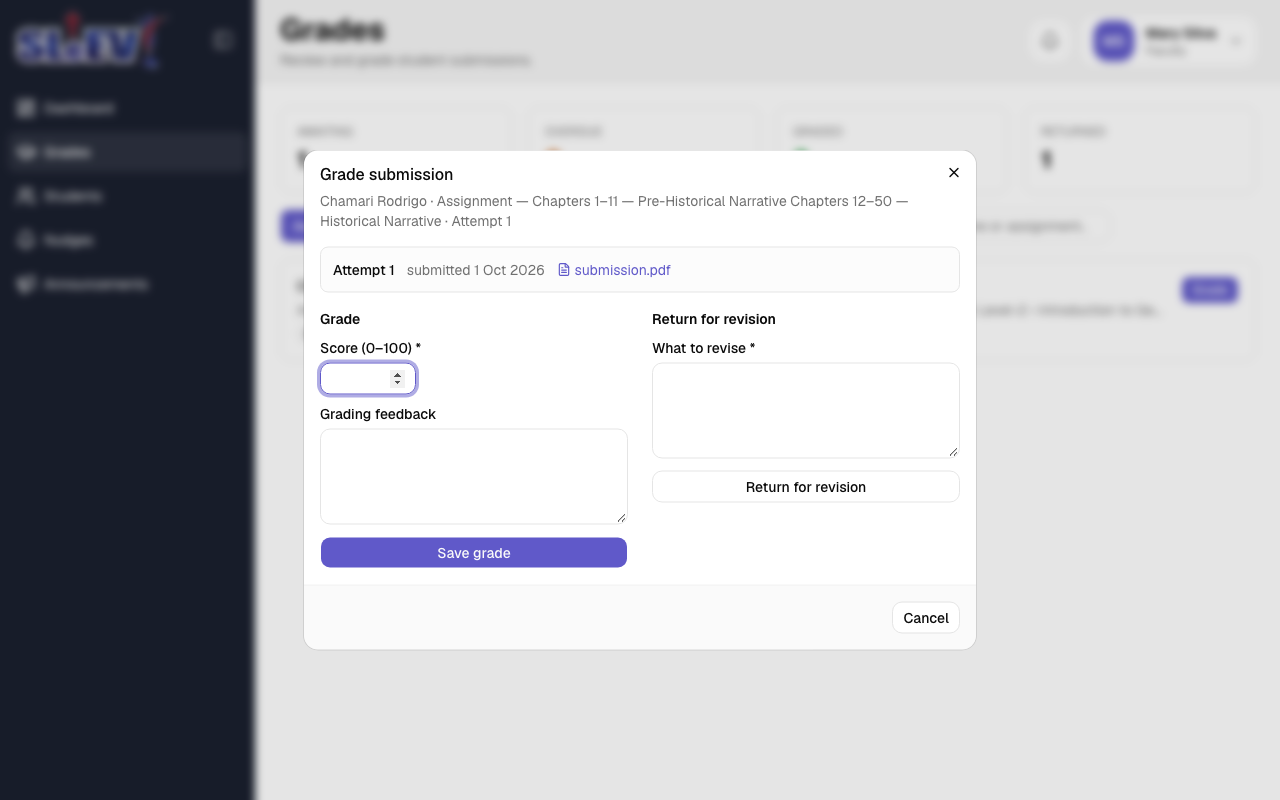
Select Grade (or Review, or History once it's already been returned) on a row. The dialog is titled "Grade submission" the first time, shows the full attempt history, then:
- Grade — a score from 0–100 and optional feedback, saved with Save grade.
- Return for revision — a note on what to revise, saved with Return for revision. This sends the work back to the student instead of grading it, even if it was already graded.
Reopening an already-graded (not yet returned) submission via Review retitles the dialog "Review grade", and its score/feedback panel is headed "Regrade" instead of "Grade" — the button stays Save grade.
Once a submission has been returned, the dialog only shows its history, with a Cancel-only footer — there's nothing left to do until the student uploads again.
If someone else graded or returned the same submission while you had it open, saving tells you "This was changed by someone else. Reload to see the latest version." with a Reload button. Reloading shows the latest version and keeps what you've typed.
Finding ungraded work from Assignments
Admins only
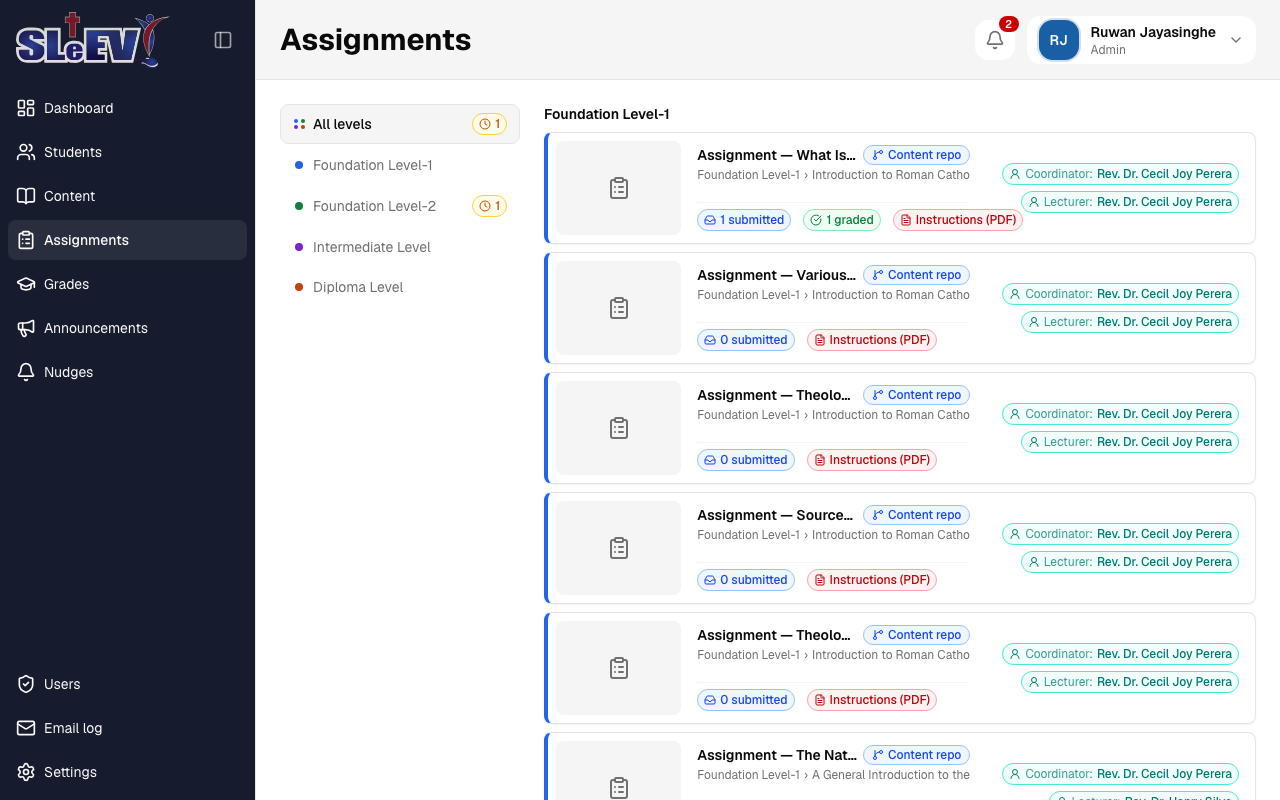
Open Assignments in the sidebar. A column down the left lists every level, each with an amber count of its ungraded submissions when it has any; All levels totals them and groups the cards underneath by level.
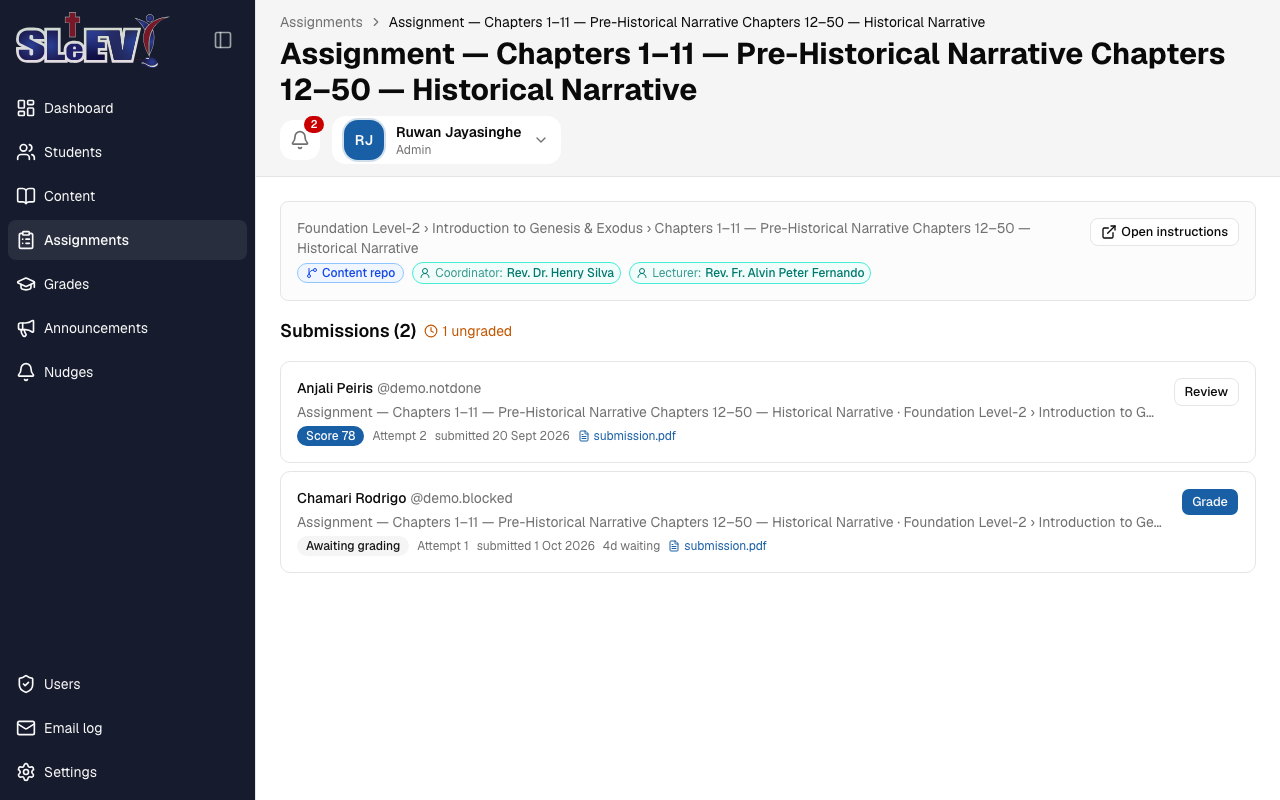
Open an assignment to see its own submissions, with the same ungraded count and the same grading list as the inbox, already filtered to it.
From a student's Assignments tab, Open in the grading inbox jumps to the same inbox filtered to that student — faculty have this link too, not just admins.
Next
- Students and progress — a student's Assignments tab and progress.
- Assignments (admins) — creating assignments and their instructions file.
- Settings (admins) — the grading-overdue threshold.