Email log
For admins: every email the app has sent or tried to send.
The email log
Open Email log at the bottom of the sidebar. Filter by status tab (All, Sent, Pending, Failed, Cancelled), by type, or search by recipient, address or subject. Each row shows the date and time, recipient, type, subject and status; a Copied badge marks an email that also went to the Copy emails to address, and hovering a failed status shows the last error.
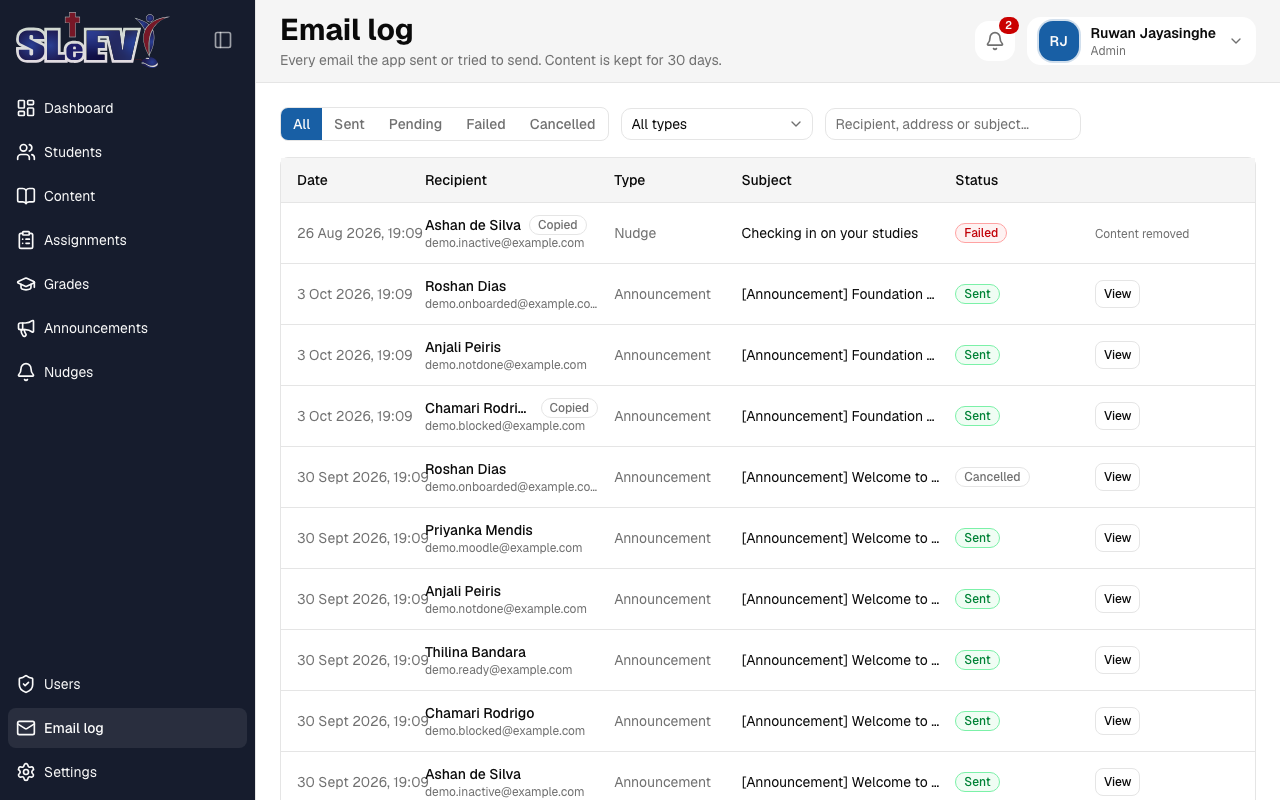
Email content is kept for 30 days; after that, the row stays in the log but its content shows as removed.
Viewing an email
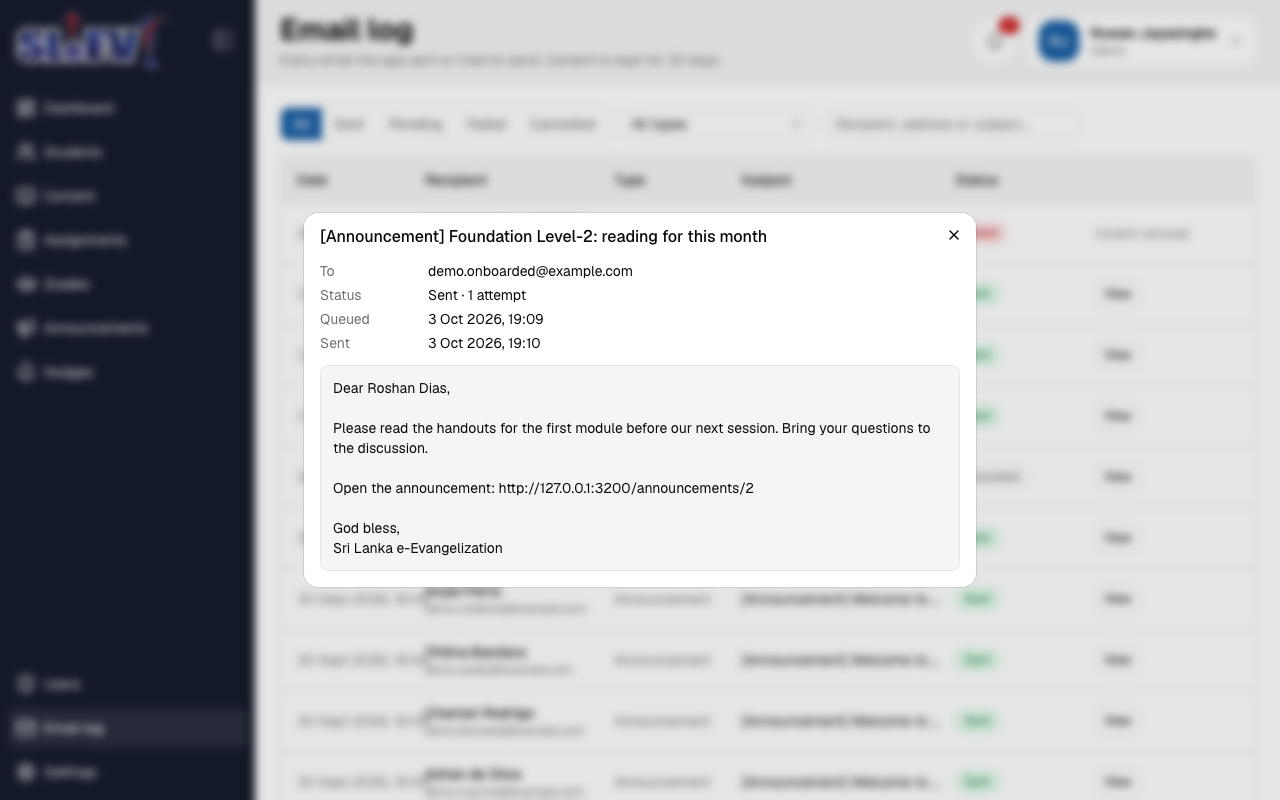
Select View on a row for its recipient, any copy address, status and attempt count, when it was queued and sent, the last error if it failed, and the plain text that was actually sent.
Retrying a failed email
A Retry button sits beside a failed row for as long as its content is still kept — up to 30 days after it was first queued. Select it, and:
- Usually, it's queued again to send.
- If the recipient can no longer receive email, or the announcement it belonged to was deleted, it's cancelled instead.
Past 30 days there's no Retry button to select at all: the row's Actions column just reads "Content removed", since there's nothing left to resend.
Next
- Announcements — the Retry failed button on an announcement itself, which does the same thing for every failed email it sent.
- Settings — the Copy emails to address shown by the Copied badge here.