Users
For admins: creating accounts, roles, the faculty label, resetting passwords, and banning.
The Users page
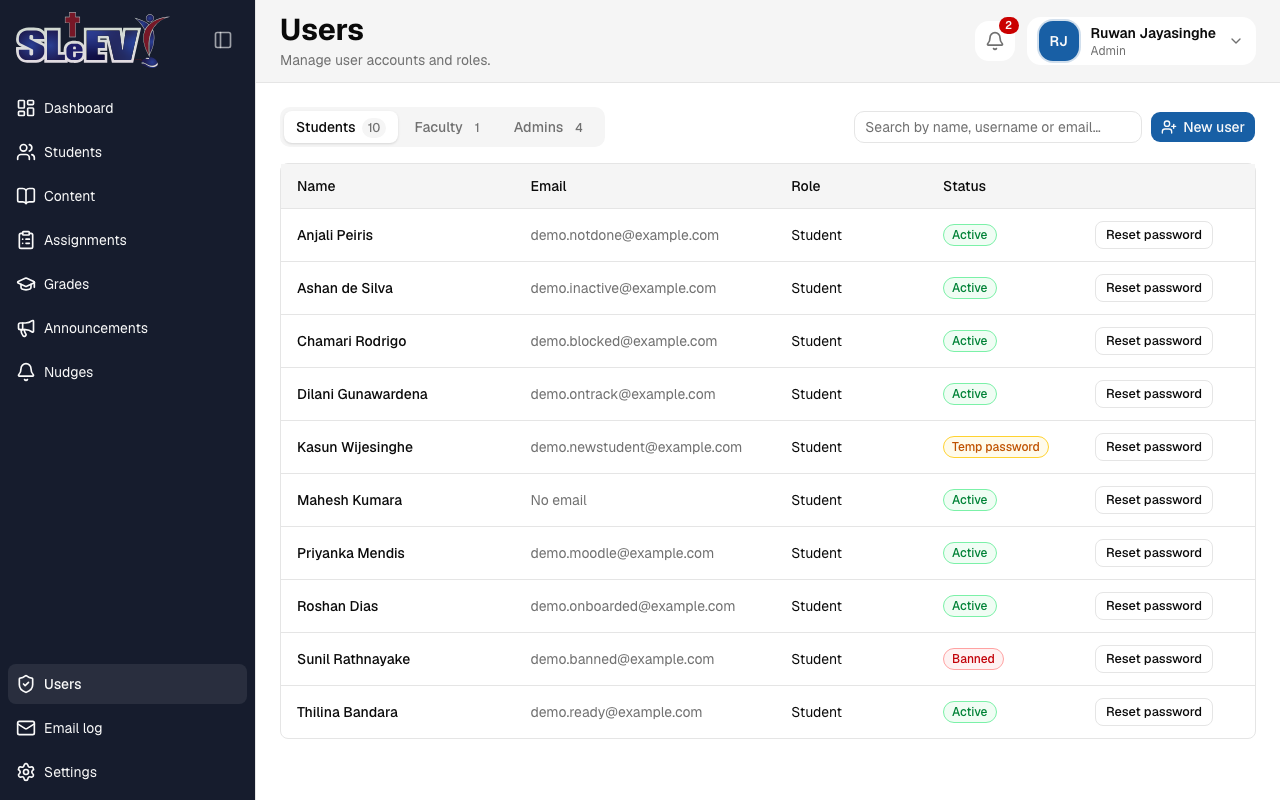
Open Users. Tabs across the top filter by role — Students, Faculty, Admins — each with a count, and a search box and New user button sit in the same row, after the search (as on Students).
Creating a user
Select New user (this reads New student or New faculty instead when you're only allowed to create one role — for example, from the Students page). Fill in:
- Full name *
- Email — leave it blank and the account shows "No email"; they'll only ever be notified in-app.
- Username *
- Password — type one, or leave it blank to generate one.
- Role *, and, for a role a superadmin can give the faculty label, an "Also teaches (counted as faculty)" checkbox.
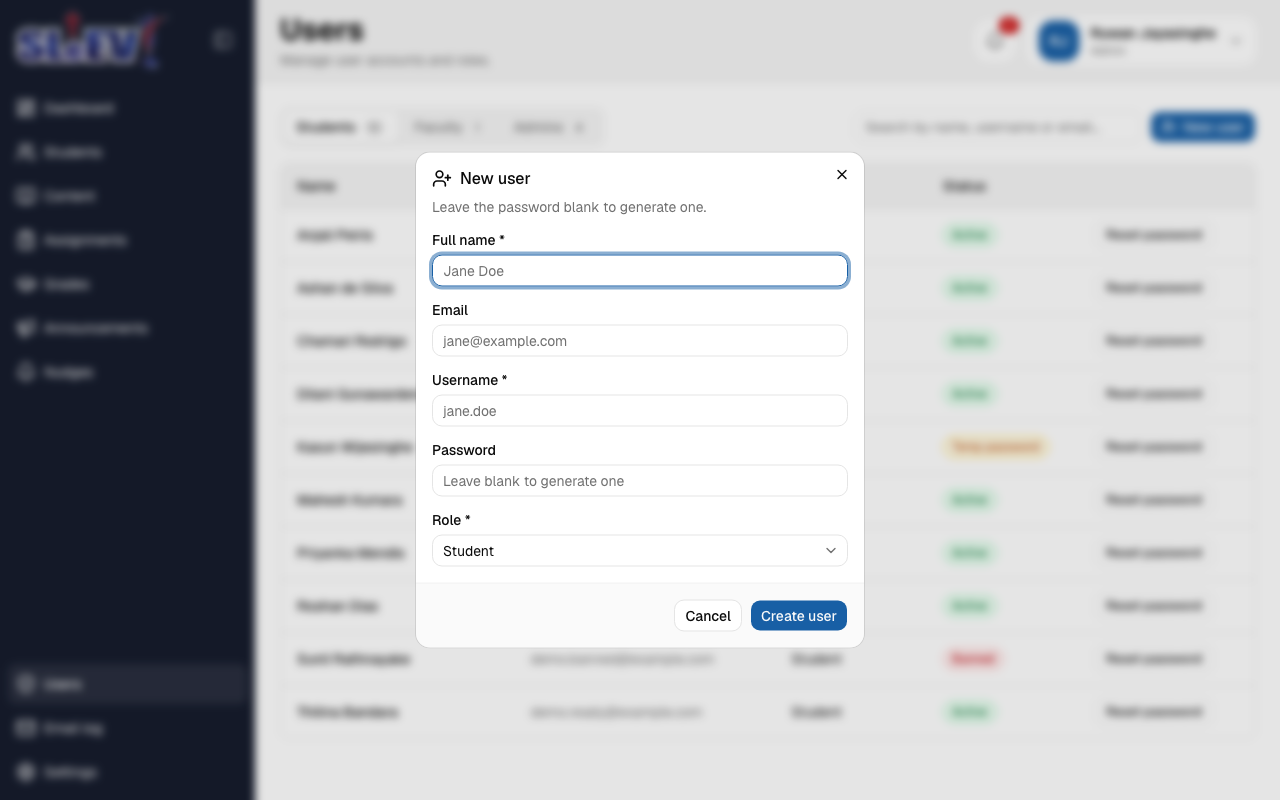
Select Create user. The dialog then shows the password once, with a Copy button and a note — "Generated" or "As entered" — "This password won't be shown again." Give it to the person directly; select Done once you've noted it down.
A user's details
Select a name in the list to open their sheet — header shows the name and "email · @username".
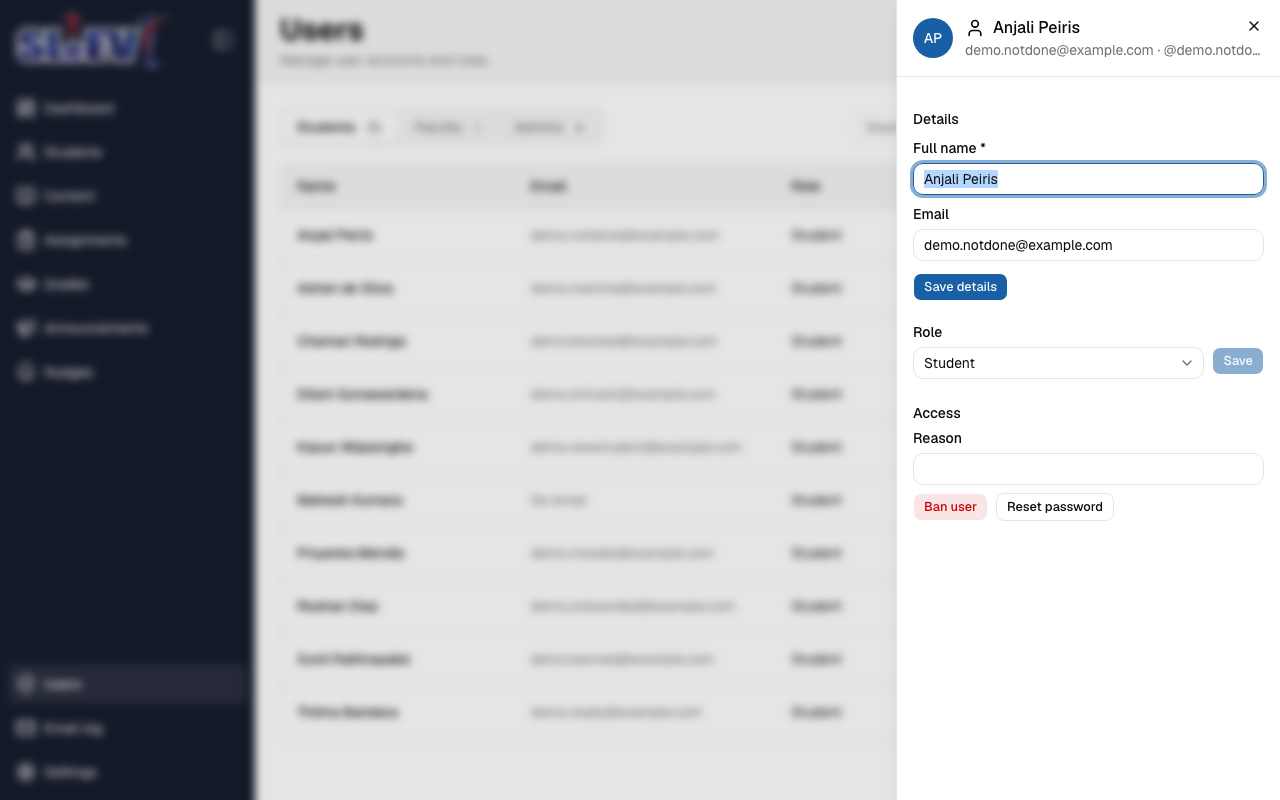
- Details — full name and email, saved with Save details.
- Role — change it from the list of roles you're allowed to assign, then Save. See the roles table for what each role can do.
-
Teaching (where it applies) — the "Also teaches (counted as faculty)" checkbox and Save.
Superadmins only
Only a superadmin can set or clear the faculty label on an admin or superadmin account.
-
Access — a reason field, Ban user / Unban user, and Reset password. Banning signs the person out at once and blocks them from signing in again until they're unbanned; it also takes them out of nudges, announcements and progress indicators meanwhile.
Resetting a password
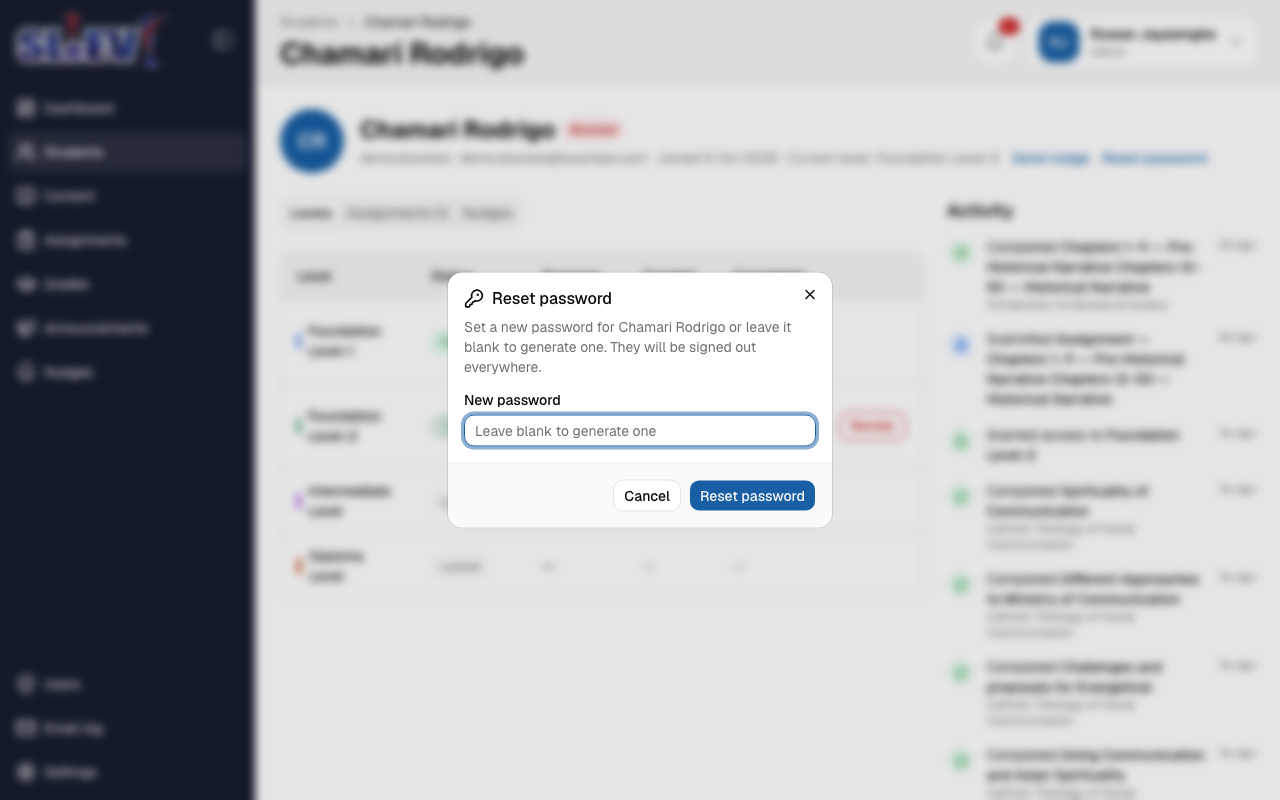
Select Reset password — from the user sheet, a user's row, or a student's own page. Type a new password or leave it blank to generate one; the person is signed out everywhere. The new password is shown once, exactly like a new account's.
Superadmins only
Only a superadmin creates or manages admin and superadmin accounts. The app always keeps at least one active superadmin — it refuses an action that would leave none.
Next
- Onboarding Moodle students — creating several student accounts at once from a CSV, with their Moodle progress.
- Students and progress — a student's own page, including Reset password there.