Staff
For staff: your first sign-in, who's who, and a tour of your dashboard.
Your first sign-in
Like a student, you sign in with the username and temporary password your administrator gave you — no email address needed. The first time you sign in, and again after anyone resets your password, you're asked to choose a password: set a new one, or select Keep current password to carry on with the one you were given.
Superadmins only
The built-in superadmin account the platform starts with also signs in with a temporary password — but while that starting password is still in use, the "Choose a password" prompt won't offer Keep current password; it has to be changed before you can get in. Until it's changed, a red banner runs across the top of every page it visits: "The default superadmin password is still in use. Change it now." The link opens the Profile page.
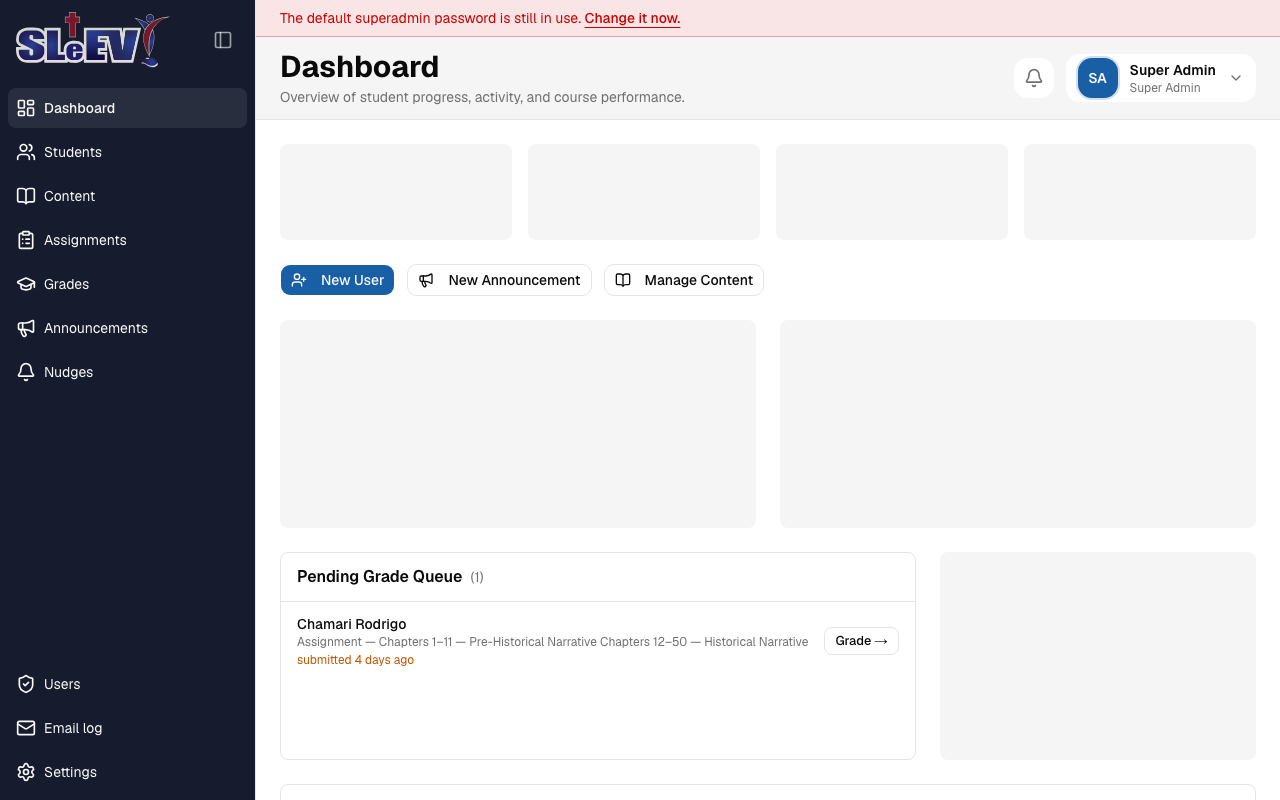
The banner never shows the password itself, and it only ever appears for this one built-in account — changing it on the Profile page (Password section) makes it go away for good.
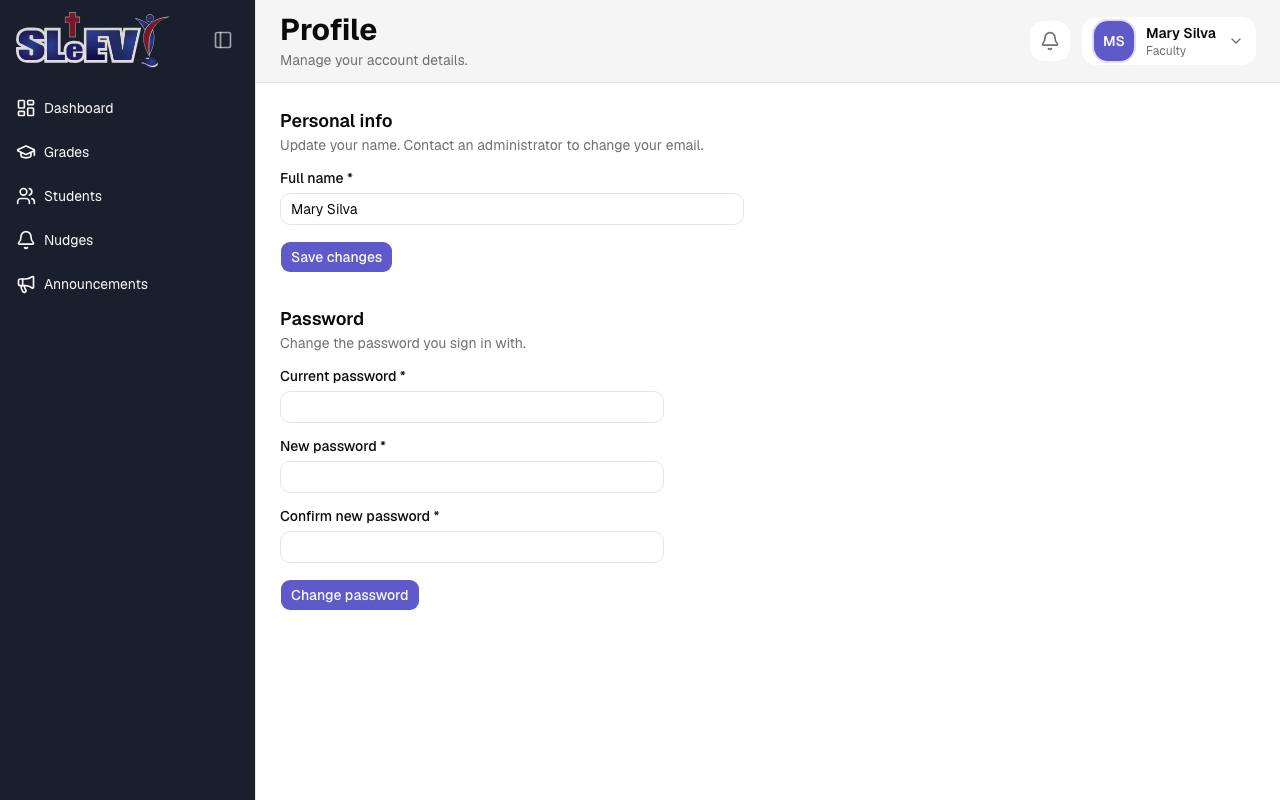
Faculty, admin or teaching admin?
Your sidebar and what you can do depend on your role — see the roles table for the full picture. The one distinction worth knowing for this guide: faculty and admins share most day-to-day tasks, but only admins (including a teaching admin, simply an admin account also labelled faculty by a superadmin) reach the admin-only pages here, marked Admins only — a few sections, further still, are marked Superadmins only.
Your dashboard
Admins
Your dashboard opens with stat cards (Students, Faculty, Pending Submissions, Completion Rate), a row of quick actions, then charts, a pending-grade queue, and a "Signups — last 30 days" chart further down.
- New User opens the same dialog as the Users page.
- New Announcement opens the announcement dialog right there, without a trip to Announcements.
- Manage Content links to the Content page.
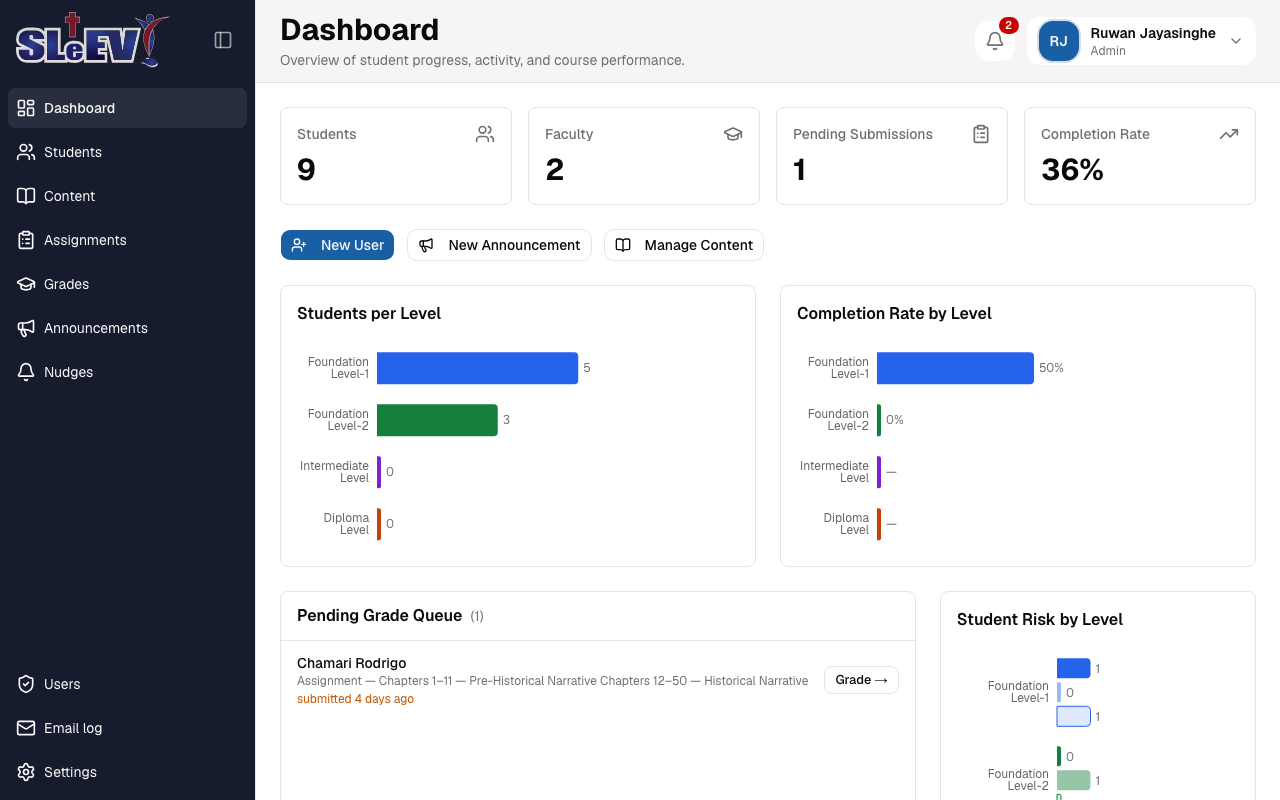
A "Signups — last 30 days" chart sits further down the page, below what this screenshot shows.
Faculty
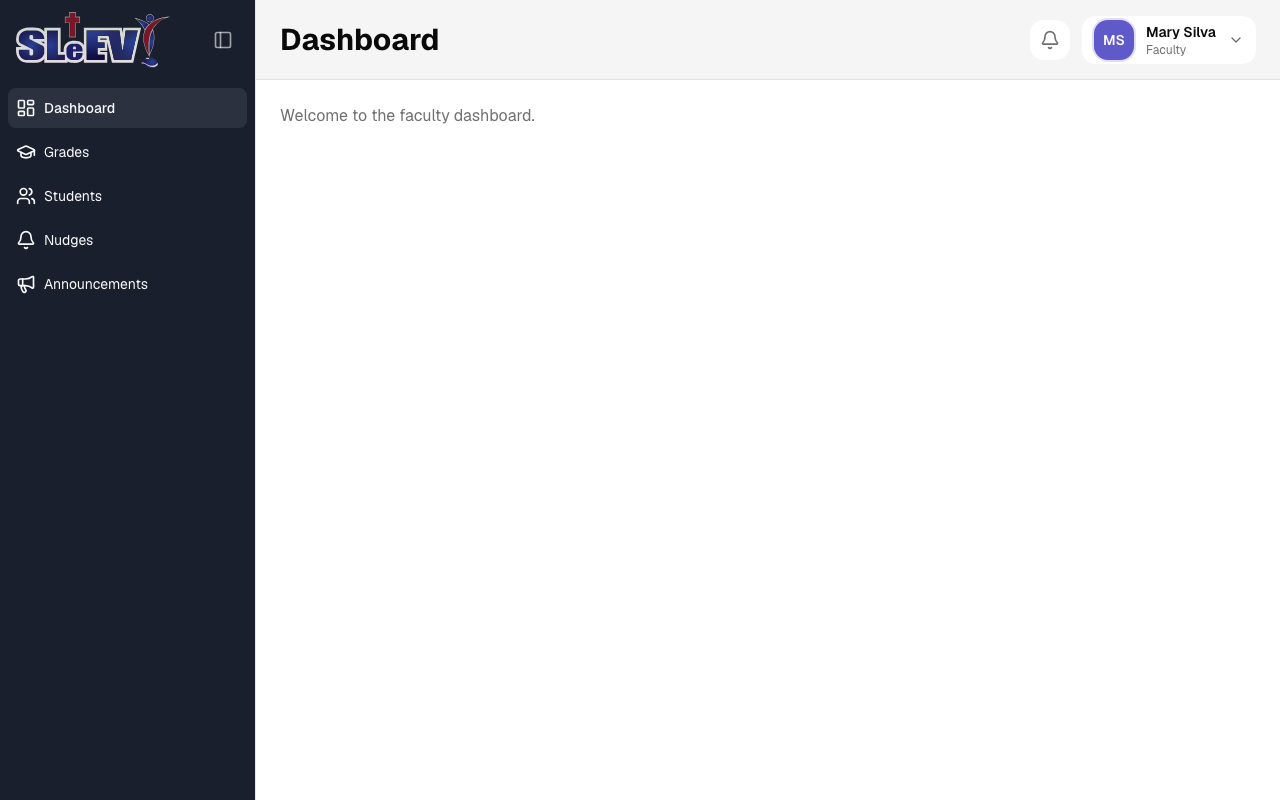
Your dashboard is a simple landing page today — a welcome message and your sidebar (Dashboard, Grades, Students, Nudges, Announcements). Everything you do day to day lives behind those sidebar links.
Editing dialogs, everywhere
Every form you'll meet in this guide — creating a user, grading work, adding a lesson and the rest — follows the same pattern:
- The footer has Cancel and then the main action button.
- A field marked with * is required.
- A field's own problem appears right under it; anything else appears in a red box above the buttons.
-
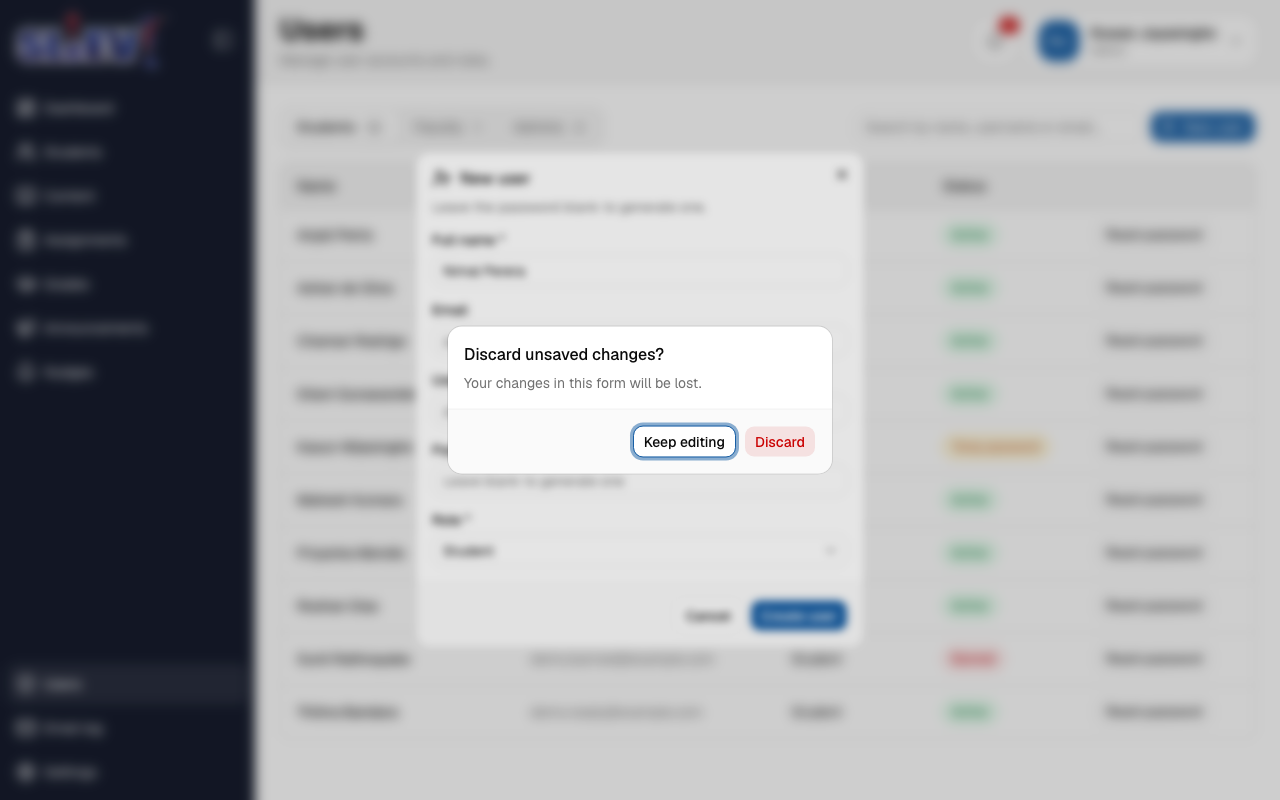
Trying to close a dialog with unsaved changes asks "Discard unsaved changes?" — Keep editing or Discard.
-
Closing is refused while a dialog is saving.
- Your browser also warns you before you close or reload the tab while any dialog is open with unsaved changes, and on the full-page Profile, password, Settings, student-import and assignment-upload forms — that warning only covers closing or reloading the tab, not clicking somewhere else in the app.
Next
- Grading — the grading inbox, grading and returning work.
- Students and progress — the student list and a student's page.
- Nudges — reminding a student or several at once.
- Announcements — posting to students and/or faculty.
- Users (admins) — creating accounts, roles and passwords.
- Onboarding Moodle students (admins) — bringing in students from Moodle.
- Levels (admins) — granting and revoking level access.
- Content (admins) — levels, modules, lessons and resources.
- Assignments (admins) — creating assignments.
- Email log (admins) — every email the app has sent.
- Settings (admins) — thresholds and the copy-emails address.
- Help — frequently asked questions.