Students and progress
For staff: the student list, what the progress indicators mean, and a student's page.
The student list
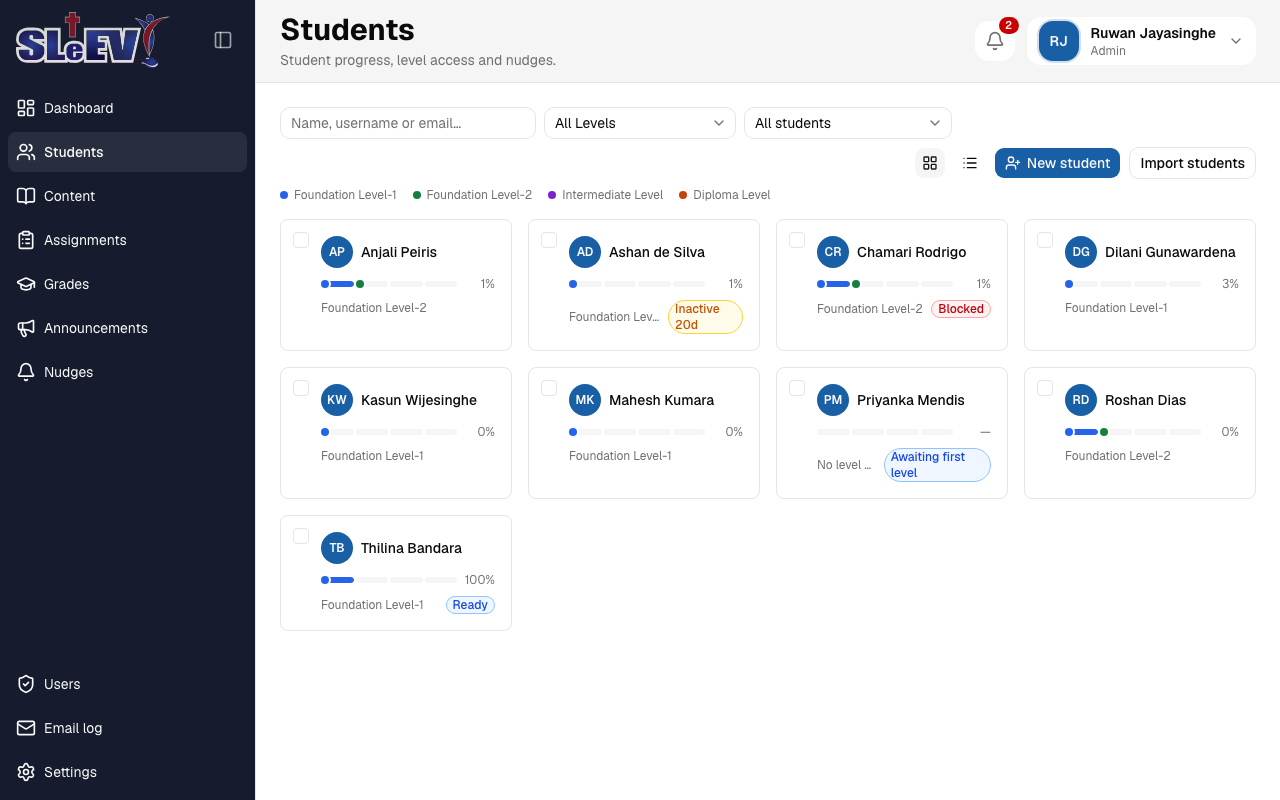
Open Students in the sidebar. A search box, a level select and an indicator select (All students, On track, Inactive, Blocked by grading, Ready for next level) filter the list; Clear filters appears once any of them is set. The buttons on the right switch between a card view and a table view, and (if you can send nudges) tick a card's checkbox to select it.
Indicators
A card or row with no badge is on track. Otherwise you'll see one or more of:
- Inactive _N_d — no progress for N days while the student's current level is active (the threshold is set in Settings, 7 days by default).
- Blocked — the student has a submission waiting to be graded.
- Ready (or Awaiting first level if they have none yet) — they have no active level, and there's a next level they could be granted.
A student's page
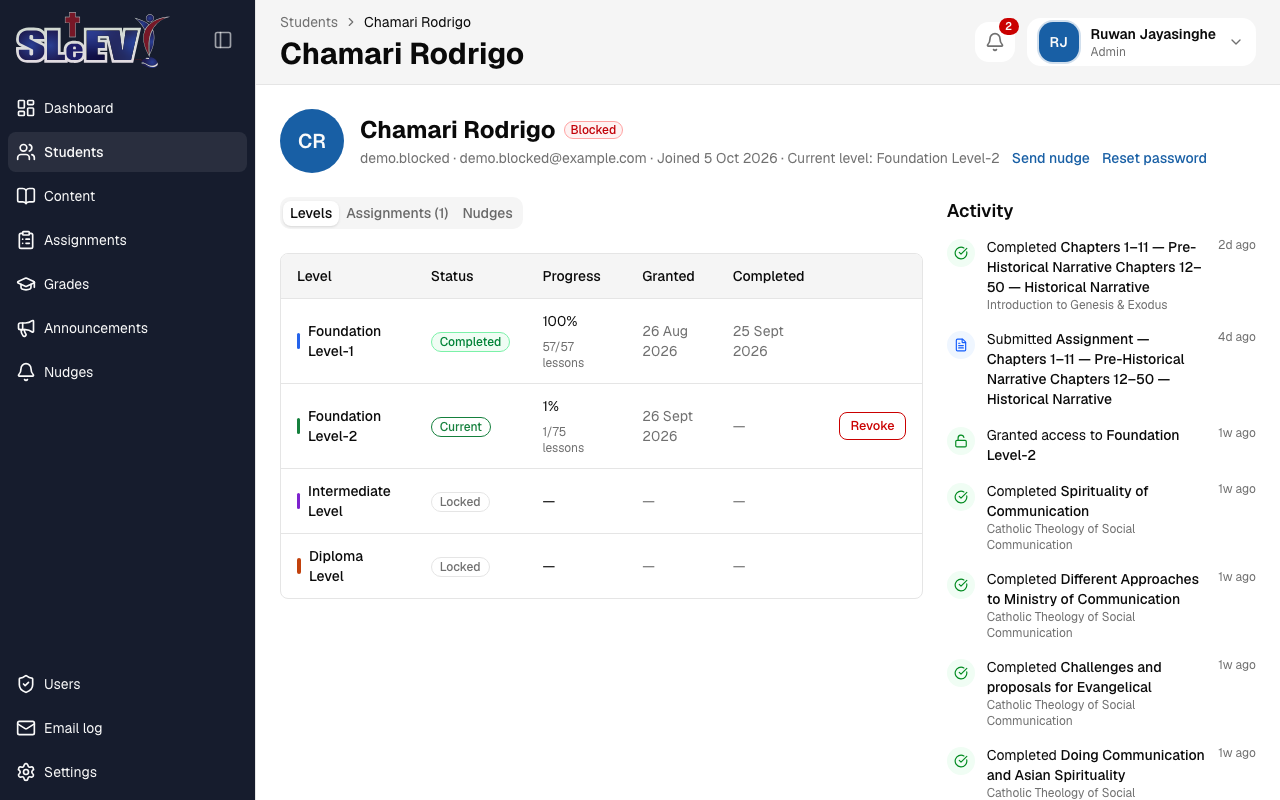
Select a student to open their page: name, status, username · email (or "No email") · joined date · current level, with Send nudge and, for admins, Reset password alongside. Admins also see Carry over Moodle progress there — but only until the student's first real activity in the app; after that the link disappears, and if the student was ever carried over, the header instead reads "Carried over from Moodle on <date>". See Onboarding Moodle students.
Below that, three tabs — Levels, Assignments (N), Nudges — sit beside an Activity feed of everything that's happened on this student's account, newest first.
Levels tab
Every level, its status, progress and (unless it was carried over from Moodle) its granted and completed dates.
Admins only
Grant access and Revoke buttons appear here for admins — see Levels for how granting and revoking work. Faculty see the same table without those buttons: progress here is read-only for faculty, though they can still send nudges and view everything else on the page.
Admins and superadmins also get a notification when a student completes a level, so the next one can be granted.
Assignments tab
Every assignment the student has submitted or had carried over from Moodle, with its status, and an Open in the grading inbox link. See Grading for grading it, or Onboarding Moodle students for what "Completed on Moodle" means and attaching a Moodle file.
Nudges tab
This student's nudge history (subject, delivery status and the full message). See Nudges for sending one and what the delivery statuses mean.
Next
- Grading — grading the work shown on a student's Assignments tab.
- Nudges — sending a nudge from a student's page or several at once.
- Levels (admins) — granting and revoking access.
- Onboarding Moodle students (admins) — carrying over Moodle progress.