Onboarding Moodle students
For admins: bringing in students who were already partway through the course on Moodle before moving here.
There are two ways to record what a student already did on Moodle: importing several students at once from a CSV file, or the Carry over Moodle progress dialog on one student's page. Both use the same underlying levels-completed-plus-current-level model.
Importing a CSV of students
Go to Students → Import students. Upload a CSV with one row per student — up to 50 students, 100 KB — with these columns, in any order:
| Column | Meaning |
|---|---|
username |
the account's sign-in name |
name |
full name |
email |
optional — leave blank for no email |
password |
optional — leave blank to generate one |
levels_completed |
how many levels, from the start, the student finished on Moodle |
next_level_paid |
yes to open the next level now, no to leave the student ready for it |
Format help on the page explains each column, with a sample CSV you can download.
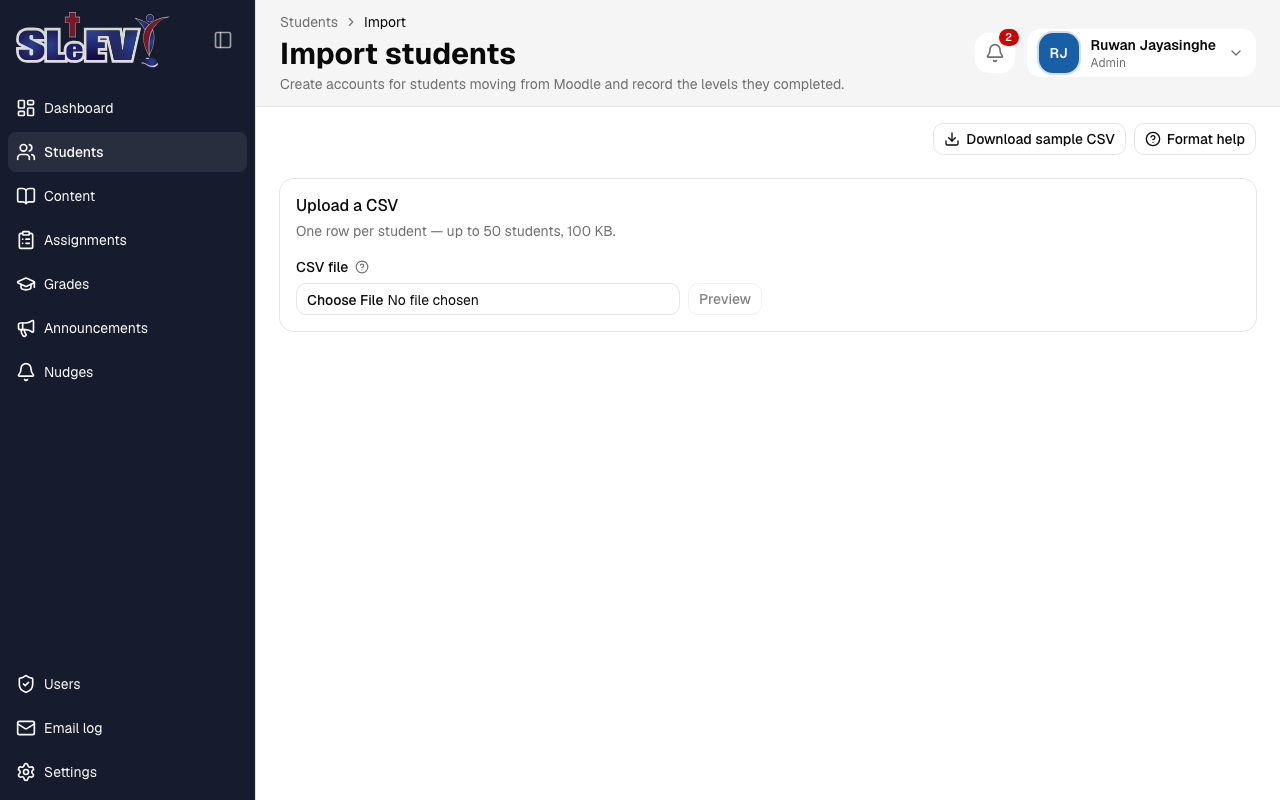
- Choose your file and select Preview — each row is checked and marked Ready, Already exists or Error, with the problem described.
- Fix any errors in the file and preview again if needed.
- Select Import.
Each row's outcome — Created, Skipped, Onboarding failed or Failed — appears with any chosen or generated password. Passwords are shown only on this page — select Download results (CSV) before you leave it; a lost password can always be set again with Reset password.
Carrying over progress on one student's page
From a student's page, select Carry over Moodle progress (or Edit carried-over progress, once it's been done before). Choose Levels completed on Moodle, and optionally tick "Open [level] now (paid)" to grant the next level straight away — doing so reveals a checklist of that level's lessons and assignments so you can tick what the student had already done (a module's checkbox ticks everything inside it).
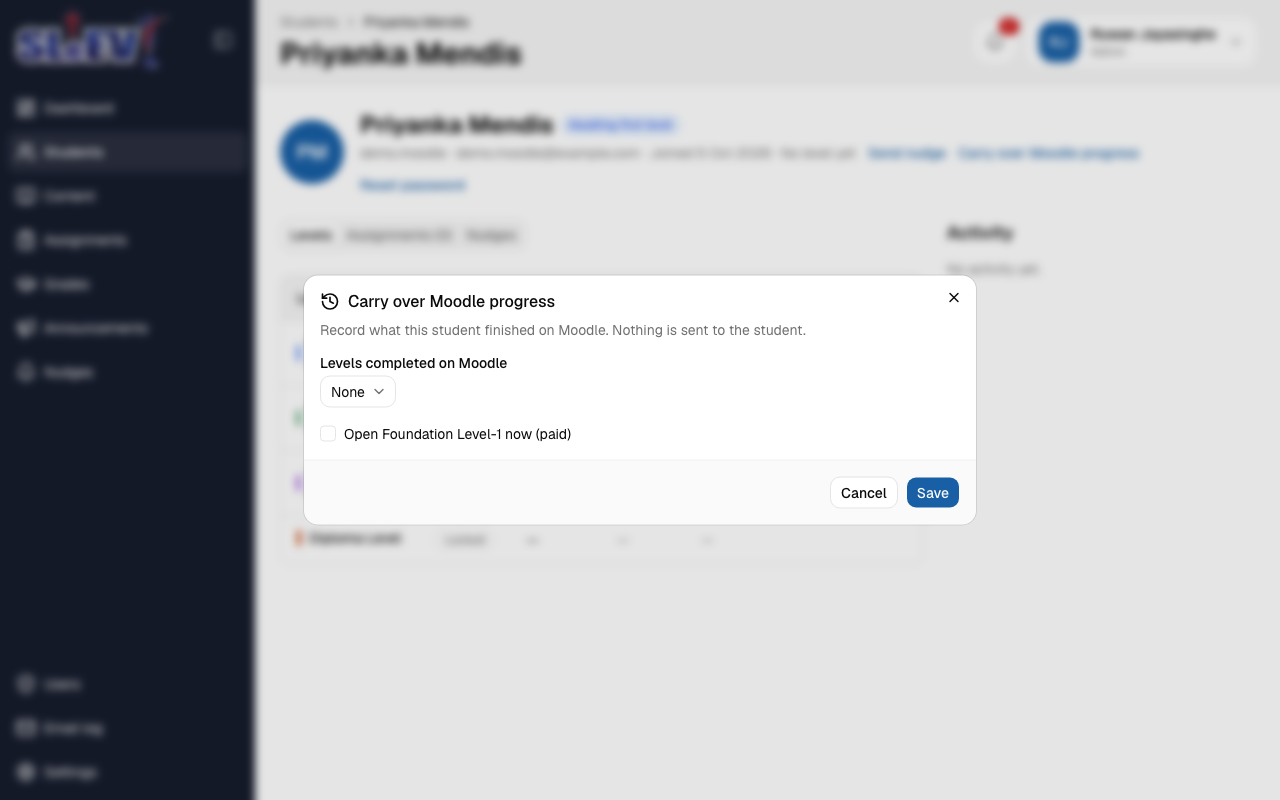
Carrying over progress sends the student nothing — not an email, not an in-app notification, not even for a level the "Open … now (paid)" checkbox opens. This stays editable until the student's first real activity in the app; after that, it's locked. If a level was added to the curriculum after a student was onboarded, the dialog warns you and counts it as completed on Moodle when you save.
Attaching an earlier Moodle file
On a Completed on Moodle assignment, a student's Assignments tab shows Attach file — upload the student's original file from Moodle (PDF or Word) and it becomes a Moodle submission link, with Remove file to take it off again.
What the labels mean
Carried over : A level marked complete from Moodle — shown instead of a granted/completed date on the student's Levels tab.
Completed on Moodle : An assignment the student already finished on Moodle. It's closed to new uploads, and grades start fresh — no Moodle scores are carried over.
Granting the next level after payment
If a student was onboarded without their next level open, and they pay for it later, don't reopen the Carry over dialog for that — open their page and select Grant access on the Levels tab instead, as described in Levels. Unlike the Carry over dialog, that grant does notify the student, the same as any other grant.
Next
- Users — creating one account by hand, roles, and passwords.
- Levels — how granting and revoking work day to day.
- Students and progress — a student's Assignments tab.