Announcements
For staff: posting an announcement and tracking who it reached.
Posting an announcement
Select New Announcement — on the Announcements page, or as a quick action on the admin dashboard, which opens the same dialog without a trip here first.
Fill in Title * and Message *, then choose Send to: Everyone, Students or Faculty. Choosing Students reveals a list of levels — leave All levels ticked, or pick specific ones to reach only students whose current level is one of them.
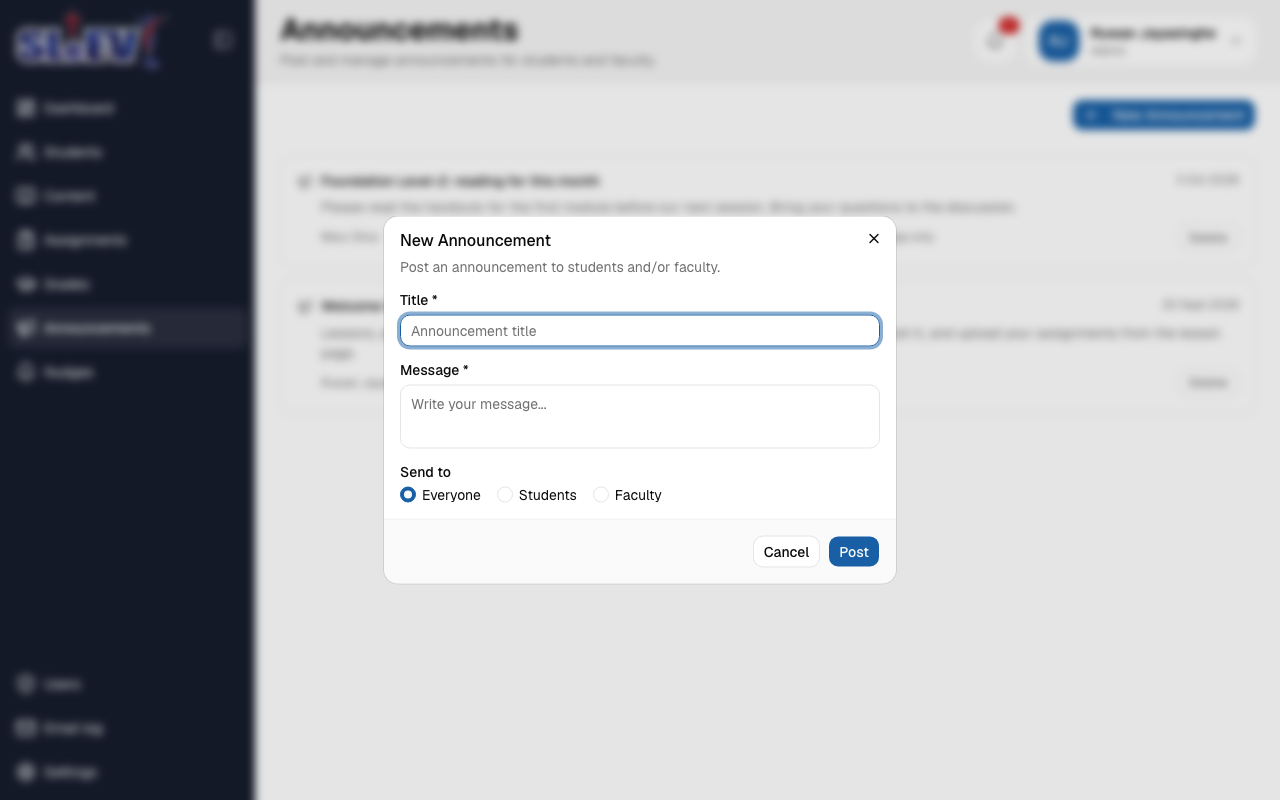
Select Post. Recipients are worked out once, at that moment — a toast confirms "Posted to N people", and a student who changes level afterwards doesn't gain or lose that announcement. You aren't counted among the recipients of your own announcement, even if you'd otherwise match its audience.
If nobody currently matches the audience you chose, posting is refused with "No one matches this audience yet." — pick a wider audience, or try again once there's someone to send it to.
The announcements list
Each card shows the title, message, author, audience and recipient count, and a delivery line: "Email: X sent · Y pending · Z failed · N in-app only".
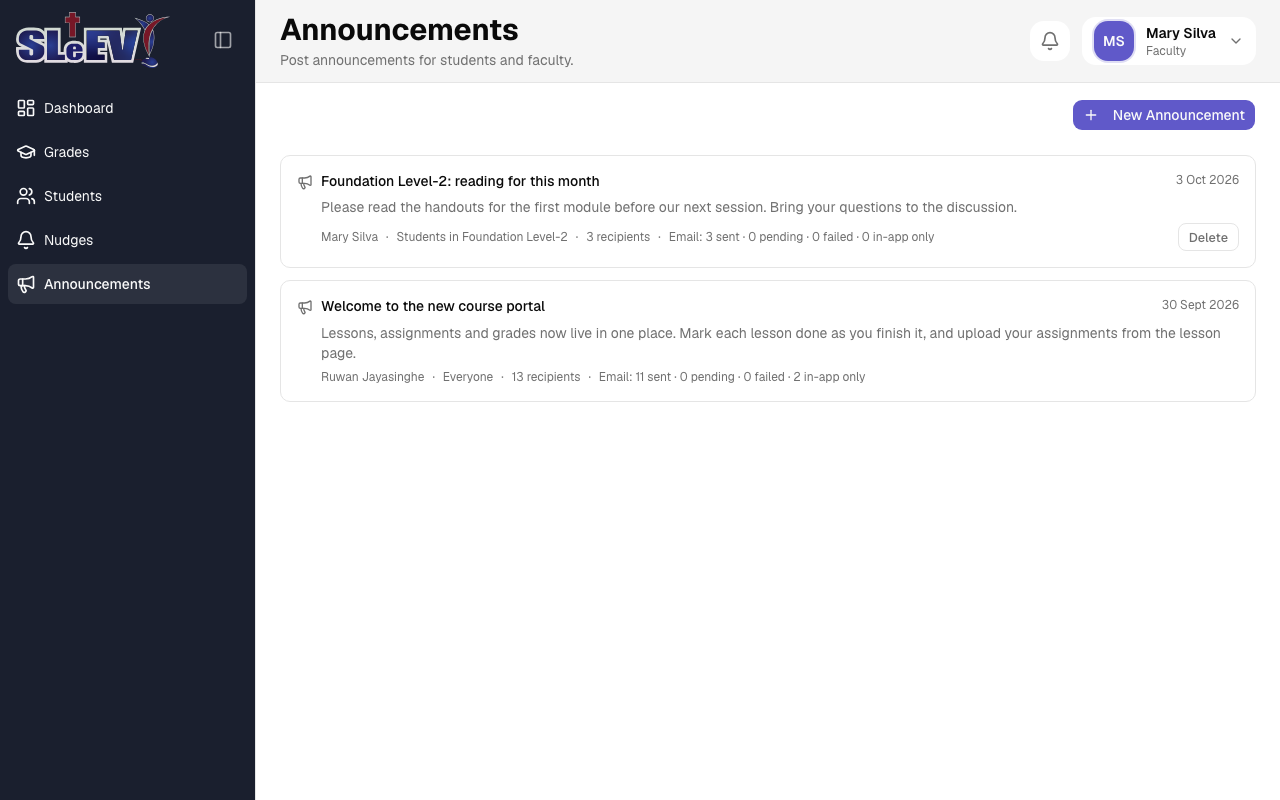
- Retry failed appears when any of that announcement's emails failed and can be retried — and only shows to its author or to an admin, same as Delete.
- Delete asks you to confirm: "Delete this announcement? Emails already sent can't be recalled."
Admins only
Faculty can only retry or delete their own announcements. Admins can retry or delete any announcement, faculty or admin.
Selecting a card opens the announcement on its own page with the same details and actions.