Content
For admins: course levels, modules and lessons — what comes from the content repository and what you manage directly.
Content repo vs Manual
Every level, module, lesson, resource and assignment carries a badge: Content repo (imported from the course's content repository) or Manual (created directly here). Every field the content repository provides is locked on an imported item — read-only here, with a note: "Managed in the content repository — the greyed-out fields change there and arrive with the next import." The one exception is a lesson's thumbnail picture, which stays editable even on an imported lesson.
Levels
Content lists every level as a card — name, badge, coordinator, module count and description — with Add Level. Every level gets a Delete icon; manual levels also get Edit.
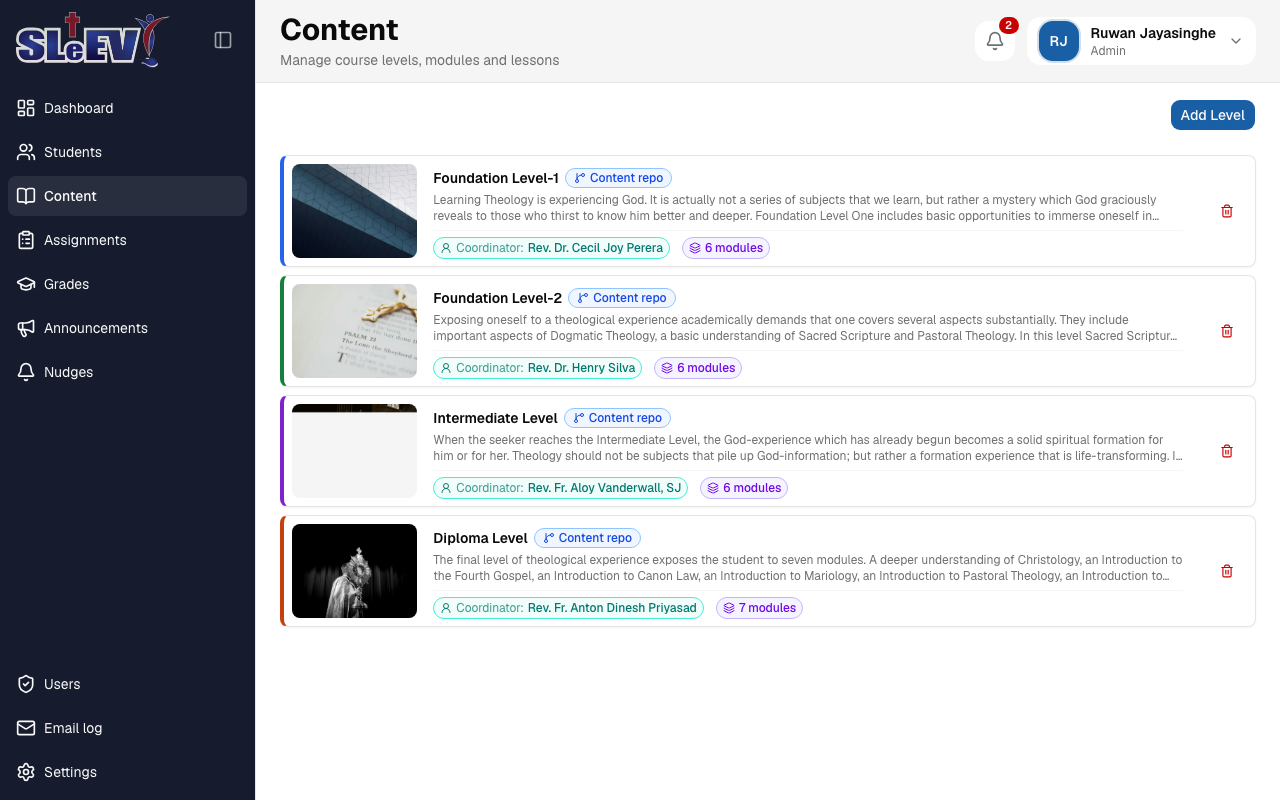
Open a level to see its modules, with Add Module.
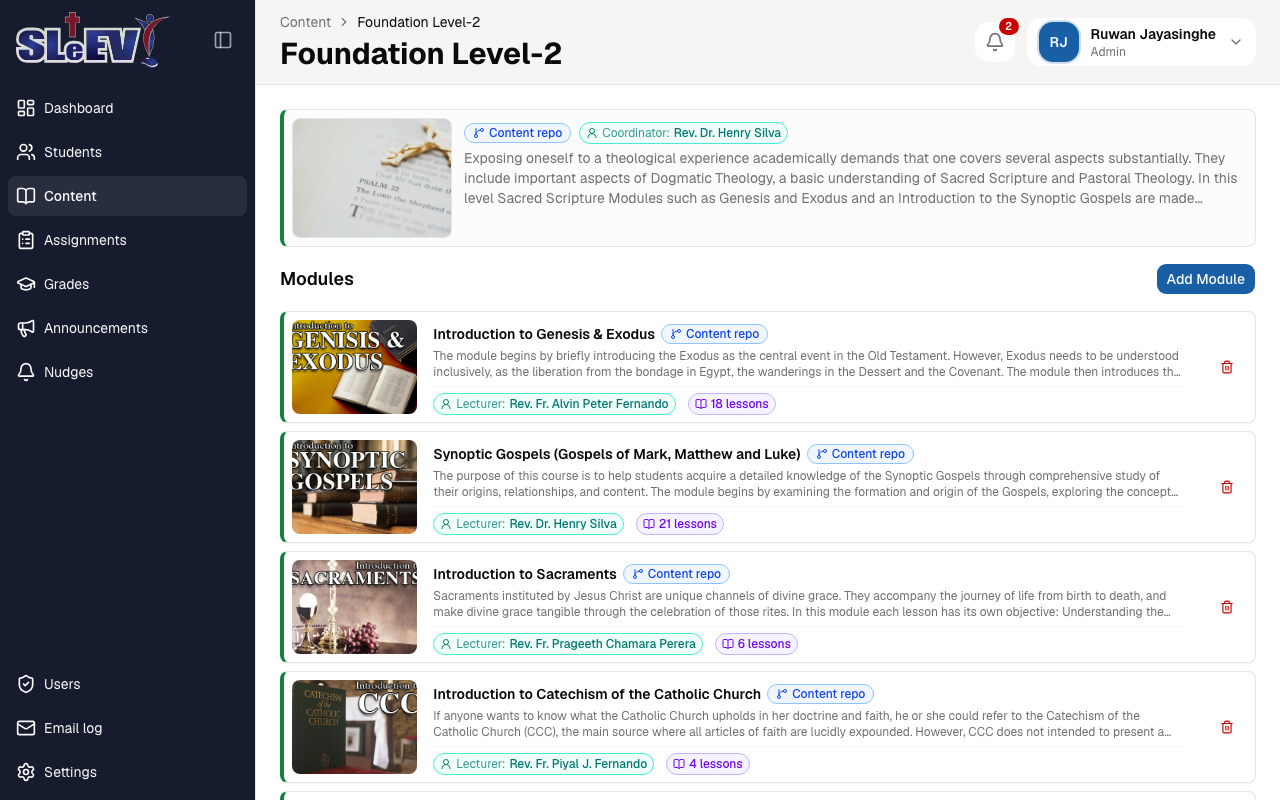
Modules
Open a module for its Lessons, Resources and Module Assignments tabs.
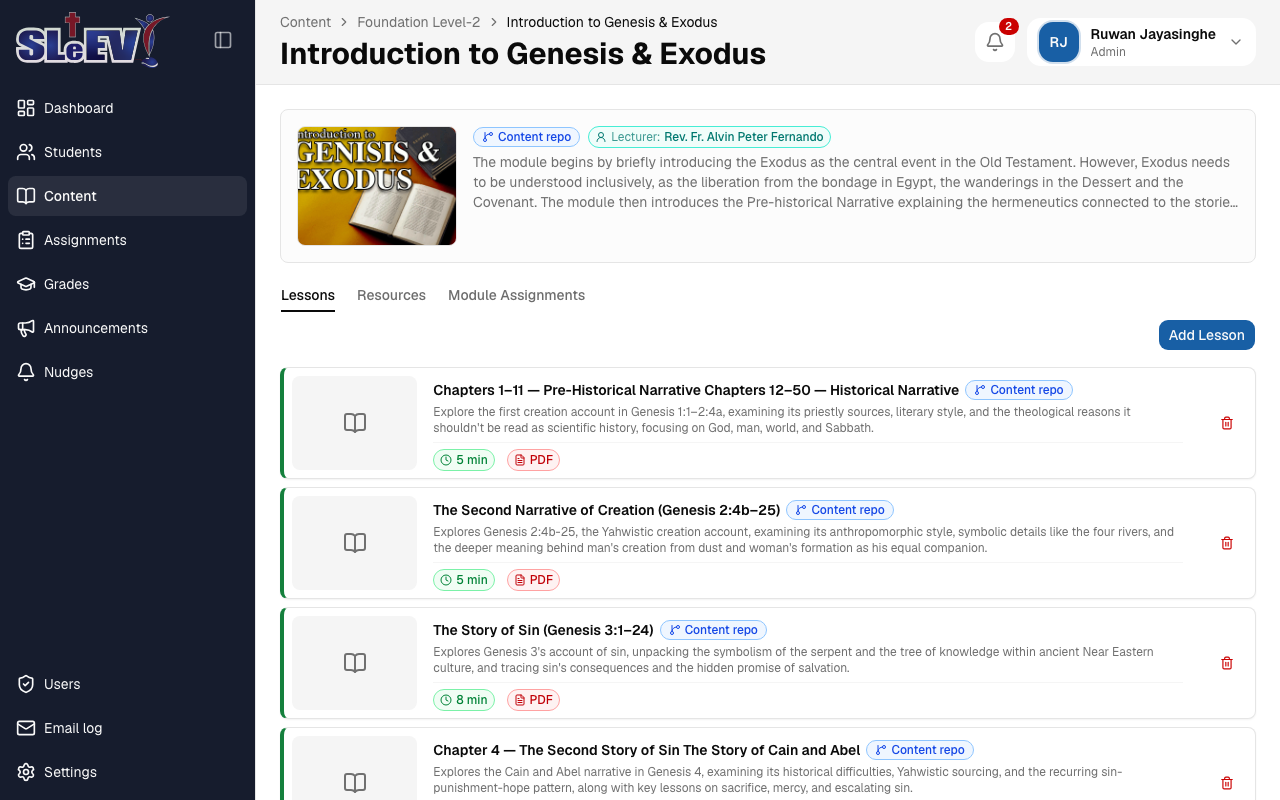
Lessons
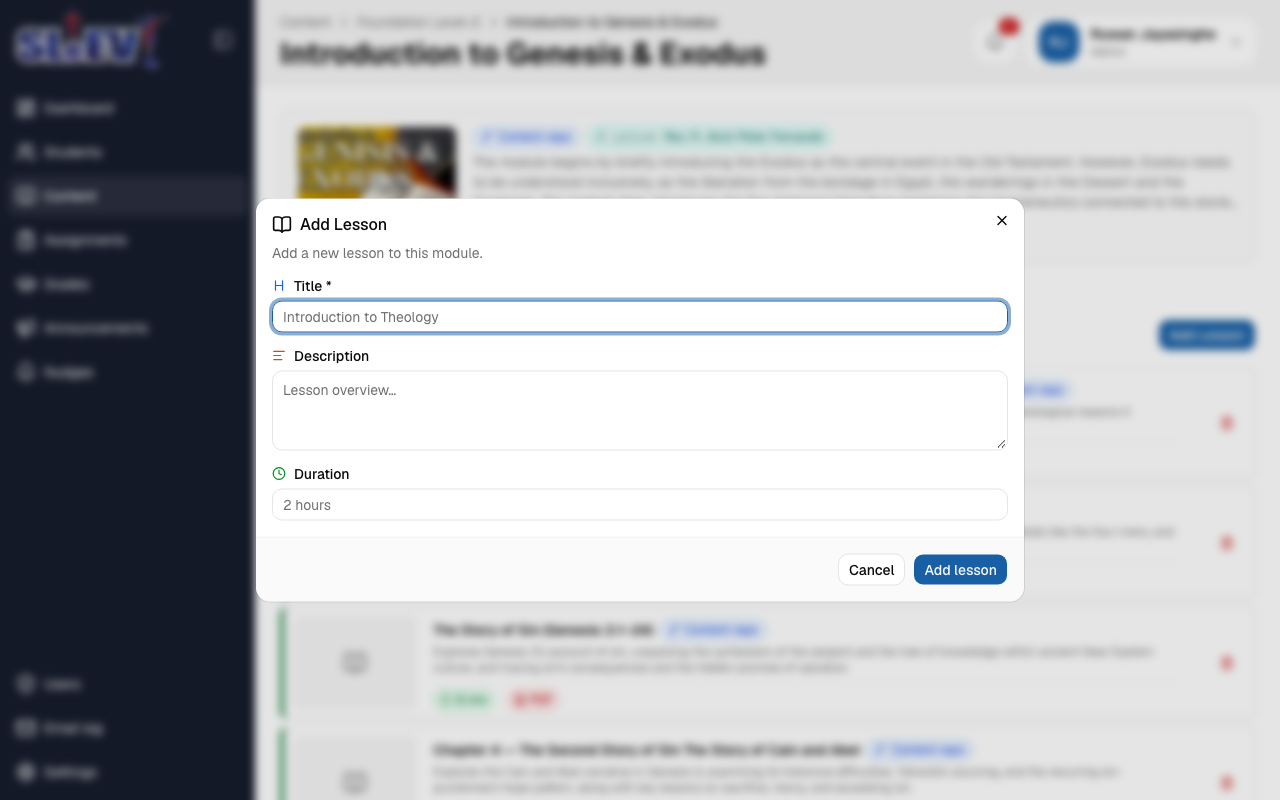
Add Lesson on the Lessons tab: Title *, Description and Duration.
Open a lesson for its thumbnail (always editable, via the small image menu), description, duration, an Open PDF button, Edit (manual lessons only), and Content / Assignments tabs — Content shows the PDF itself, with page controls.
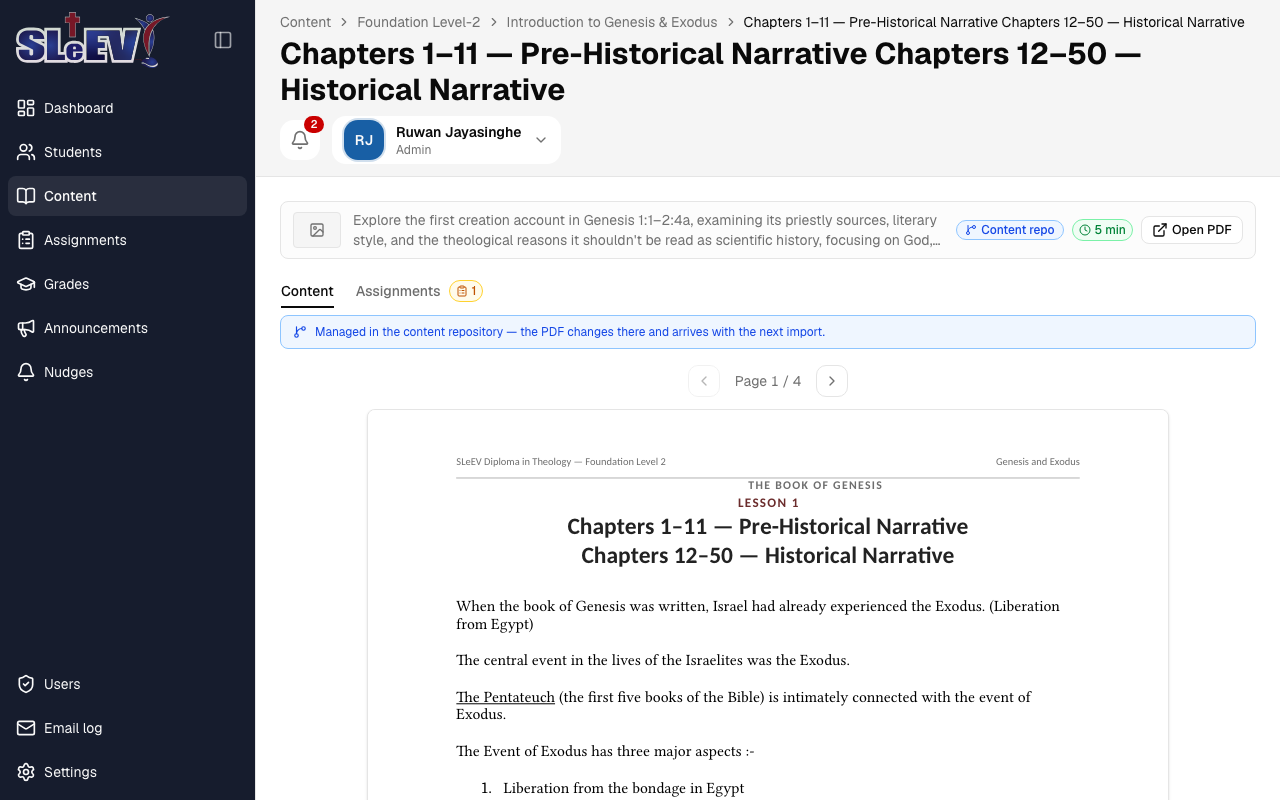
On a manual lesson, Upload PDF / Replace PDF (and Remove PDF once one exists) sit above the viewer; an imported lesson shows a note instead — its PDF changes in the content repository and arrives with the next import.
Resources
Add Resource on a module's Resources tab: a Kind (Introduction, Appendix or Handout), a Title, and the PDF itself. Editing a manual resource changes its kind and title; replace its file from the resource row. An imported resource is fully read-only here — delete is the only action offered.
Deleting content
Deleting asks you to confirm, and refuses when the item (or anything under it) has student records attached — a submission, graded work or progress. Deleting an imported item still works, but the next content import recreates it, so the confirmation says as much; remove it from the content repository instead if you want it gone for good.
Course changes
Course material itself — new levels and modules, lesson wording, PDFs — comes from the content repository. If something there needs to change, that's where it happens; this page only reflects what's been imported.
Next
- Assignments — creating assignments on a lesson or module.
- Levels — granting students access to a level once it exists.